Delivery to Z-BOX
To create a packet within the Packeta network you need to follow these steps:
- Select packet destination
- Obtain the Z-BOX ID
- Create packet
- Download the label
- Packet tracking (optional)
Below we will go through each of these steps
Select the destination
To provide your customers available pick-up points, you have two options:
- Use Packeta widget (map-based tool)
- Integrate Packeta feeds (data-based source)
Widget
The easiest way to implement pick-up point selection is using the Packeta Widget. It's a ready-to-use solution you can embed to your checkout.
Advantages:
- fast implementation
- minimal customization required
See implementation detail in the widget documentation.
Once you implemented the widget into your solution, you can specify if and which external carriers should be shown for each country using the vendors attribute.
The example below shows how to limit the view to Z-BOXes in Czechia.
const packetaOptions = {
	vendors: [
		{
			country: "cz",
			group: "zbox"
		}
	]
};
You can test different configuration options in our Widget sandbox.
Feed integration
If you want to build your own pick-up point selector, you can use our data feeds and work directly with raw location data.
Use feeds if:
- you want full control over the user interface
- you are building a custom front-end solution
- you need to customize how locations are displayed or filtered
Implement the feed using the available guide.
When you obtain data, please make sure to respect attribute "displayFrontend": 1. It signalizes whether the Z-BOX is available to the end customer. Value 1 means that the point can be selected.
Obtain the Z-BOX ID
You can obtain the ID from:
From widget you will get the atribute <id> in object point
{
	"id": "18579",  // Z-BOX ID
	"isNew": false,
	"maxWeight": 15,
	"name": "Z-BOX Praha 9, Libeň, Českomoravská 2408",
	"nameStreet": "Z-BOX Praha 9, Libeň, Českomoravská 2408",
	...
}
In feed you will get atribute <id>
{
	"id": "18579",  // Z-BOX ID
	"type": "zbox",
	"name": "Z-BOX Praha 9, Libeň, Českomoravská 2408",
	"place": "Z-BOX",
	"street": "Českomoravská 2408",
	"city": "Praha",
	"zip": "190 00",
	"country": "cz",
	"currency": "CZK",
	"status": {
		"statusId": "1",
		"description": "V provozu"
	},
	"displayFrontend": "1",  // respect this atribute
	...
}
Create Packet
In this step you will fill in the information the customer provided. The ID of the Z-BOX belongs to atribute <addressId>.
See detail on packet creation here.
The request will look as follows:
<!--request-->
<createPacket>
	<apiPassword>{{API_PASSWORD}}</apiPassword>
	<packetAttributes>
		<number>orderNumber</number>
		<name>Joe</name>
		<surname>Doe</surname>
		<company>Company</company>
		<email>example@packetatest.com</email>
		<phone>+420777777777</phone>
		<addressId>18579</addressId>  <!-- Z-box ID -->
		<cod>0</cod>
		<value>115</value>
		<currency>CZK</currency>
		<weight>2.5</weight>
		<eshop>{{INDICATION}}</eshop>  <!-- Field from the Client section/Sender/Indication -->
	</packetAttributes>
</createPacket>

<!--response-->
<response>
	<status>ok</status>
	<result>
		<id>4376064580</id>
		<barcode>Z4376064580</barcode>
		<barcodeText>Z 437 6064 580</barcodeText>
	</result>
</response>
Download the label
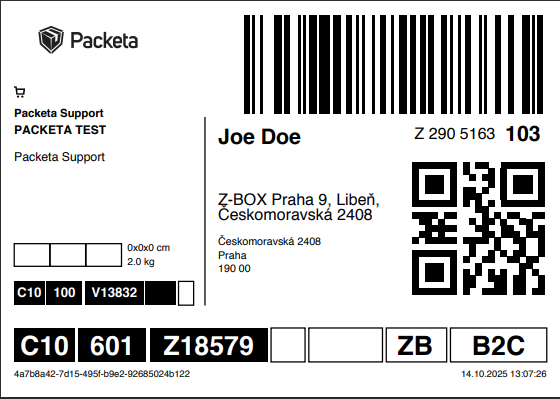
Once you have successfully created a packet you need to generate the label. Since you will send the packet via Packeta network you can proceed with one of the available label generating methods.
We will be using <packetLabelPdf> for this example.
<!--request-->
<packetLabelPdf>
	<apiPassword>{{API_PASSWORD}}</apiPassword>
	<packetId>4376064580</packetId>
	<format>A6 on A6</format>
	<offset>0</offset>
</packetLabelPdf>

<!--response-->
<response>
	<status>ok</status>
	<result>JVBERi0xLjcKJeLjz9MKNyAwIG9iago8P.....NDU1PiBdID4+CnN0YXJ0eHJlZgo4ODE1NwolJUVPRgo=</result>
</response>
In the response you will receive the label in the .xml format. Once you decode it to .pdf you can see a label like this.
Packet Tracking
To track your packet once you handed into the Packeta network you can use packetTracking(). You will see chronological overview of the statuses the packet has entered as well as the current status.
Here you can find list of available statuses.
Example:
<!--request-->
<packetTracking>
	<apiPassword>{{API_PASSWORD}}</apiPassword>
	<packetId>Z4376064580</packetId>
</packetTracking>

<!--response-->
<?xml version="1.0" encoding="utf-8"?>
<response>
	<status>ok</status>
	<result>
		<record>
			<dateTime>2025-06-30T11:28:59</dateTime>
			<statusCode>1</statusCode>
			<codeText>received data</codeText>
			<statusText>We are aware of your parcel and are waiting for the sender to hand it over to us.</statusText>
			<branchId>0</branchId>
			<destinationBranchId>0</destinationBranchId>
			<externalTrackingCode></externalTrackingCode>
		</record>
		<record>
			<dateTime>2025-06-30T12:20:32</dateTime>
			<statusCode>2</statusCode>
			<codeText>arrived</codeText>
			<statusText>Package has arrived at Praha 9, Libeň, Ocelářská 1018/3.</statusText>
			<branchId>8993</branchId>
			<destinationBranchId>0</destinationBranchId>
			<externalTrackingCode></externalTrackingCode>
		</record>
		<record>
			<dateTime>2025-06-30T12:22:14</dateTime>
			<statusCode>3</statusCode>
			<codeText>prepared for departure</codeText>
			<statusText>Packet has been prepared to be dispatched from Praha 9, Libeň, Ocelářská 1018/3 to DEPO, Praha - Štěrboholy, K Hrušovu 292/4.</statusText>
			<branchId>8993</branchId>
			<destinationBranchId>13497</destinationBranchId>
			<externalTrackingCode></externalTrackingCode>
		</record>
		<record>
			<dateTime>2025-06-30T17:54:05</dateTime>
			<statusCode>2</statusCode>
			<codeText>arrived</codeText>
			<statusText>The parcel has arrived at the depot. Praha-Štěrboholy, K Hrušovu 292/4</statusText>
			<branchId>13497</branchId>
			<destinationBranchId>0</destinationBranchId>
			<externalTrackingCode></externalTrackingCode>
		</record>
		<record>
			<dateTime>2025-07-01T04:59:58</dateTime>
			<statusCode>3</statusCode>
			<codeText>prepared for departure</codeText>
			<statusText>Packet has been prepared to be dispatched from DEPO, Praha - Štěrboholy, K Hrušovu 292/4 to Z-BOX Praha 9, Libeň, Českomoravská 2408.</statusText>
			<branchId>13497</branchId>
			<destinationBranchId>18579</destinationBranchId>
			<externalTrackingCode></externalTrackingCode>
		</record>
		<record>
			<dateTime>2025-07-01T12:09:15</dateTime>
			<statusCode>4</statusCode>
			<codeText>departed</codeText>
			<statusText>Packet has been dispatched to Z-BOX Praha 9, Libeň, Českomoravská 2408.</statusText>
			<branchId>13497</branchId>
			<destinationBranchId>18579</destinationBranchId>
			<externalTrackingCode></externalTrackingCode>
		</record>
		<record>
			<dateTime>2025-07-01T13:11:26</dateTime>
			<statusCode>5</statusCode>
			<codeText>ready for pickup</codeText>
			<statusText>Packet has arrived at the final destination.</statusText>
			<branchId>18579</branchId>
			<destinationBranchId>0</destinationBranchId>
			<externalTrackingCode></externalTrackingCode>
		</record>
		<record>
			<dateTime>2025-07-01T14:34:42</dateTime>
			<statusCode>7</statusCode>
			<codeText>delivered</codeText>
			<statusText>The parcel is with you. Thank you, and we look forward to next time.</statusText>
			<branchId>18579</branchId>
			<destinationBranchId>0</destinationBranchId>
			<externalTrackingCode></externalTrackingCode>
		</record>
	</result>
</response>
Didn't find what you're looking for? Reach out to our integration support team at integrations@packeta.com.