Slow client section
If you are experiencing slow loading of the Packeta client section or another Packeta web application, please try the following steps. They often help identify or resolve the issue. We will also show you the differences between individual web browsers.
You will learn:
- How to check and update your browser version
- How to test loading speed in an incognito window
- How to clear browser cache
If none of the first three steps help, continue with the last section and send us the collected files, screenshots, and video.
Check browser version
First, make sure you are using the latest version of your browser. Different browser versions may behave differently, so it is always best to keep your browser up to date.
- Open your browser.
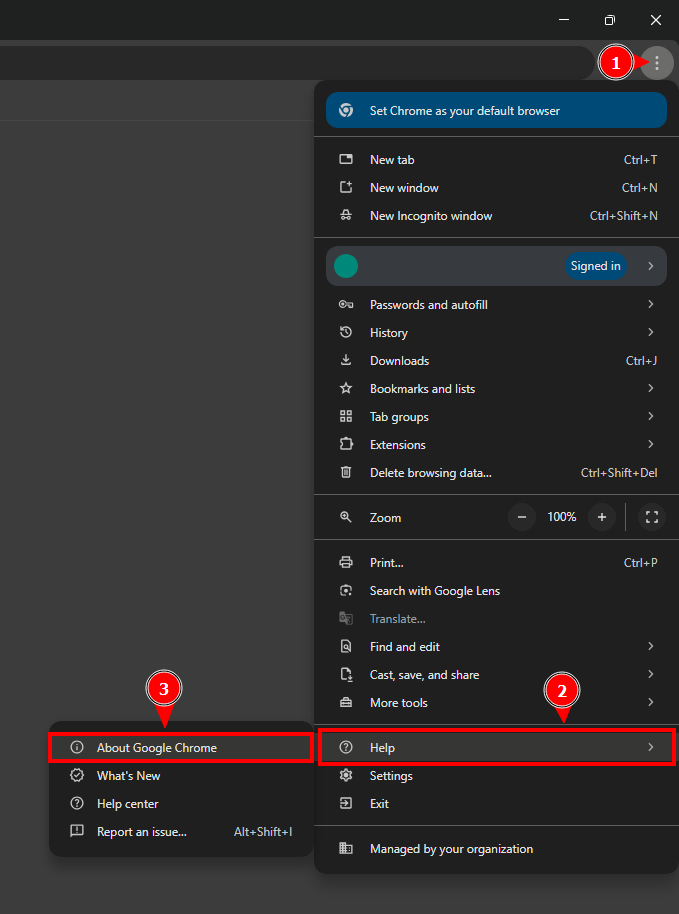
- Locate the settings menu, usually in the top-right corner:
- Chrome, Edge: three dots
- Firefox: three horizontal lines
- Safari: click Safari in the top menu bar
- Open the section About browser or About application. It's usually located in Help.
- Chrome: Help → About Google Chrome
- Edge: Help and feedback → About Microsoft Edge
- Firefox: Help → About Firefox
Safari: updates are checked via System Settings → Software Update (Safari is not updated separately).
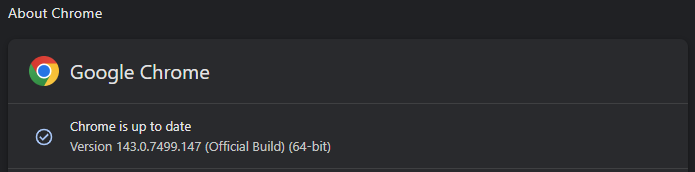
- Once the browser information page is opened, the update check starts automatically. If a new version is available, you will see an option to Restart or Install. Try to reproduce the issue after restart.
- If your browser is up to date, you will see a message such as “Your browser is up to date”. (e.g. “Google Chrome is up to date”, “Microsoft Edge is up to date”, etc.).
Incognito mode
As a second step, try testing the loading speed in an incognito (private) window. An incognito window does not use existing cookies or stored data from your regular browsing session. However, it can still create a temporary cache during the incognito session itself.
You can open an incognito window using the shortcut CTRL+SHIFT+N or via the browser menu (three dots) by selecting New incognito window. Check whether the slowdown also occurs in incognito mode.
Browser cache
You may know browser data as cache or cookies. These are different types of data stored by the browser. Cache primarily helps speed up loading, while cookies store application state. In some cases, stored data can cause outdated or incorrect content to be loaded. In this step, you will learn how to clear browser data manually.
- Open the browser settings menu (usually top-right corner):
- Chrome, Edge: three dots
- Firefox: three horizontal lines
- Safari: click Safari in the top menu bar
- Find History or Privacy and security:
- Chrome: History → Clear browsing data
- Edge: History → Clear browsing data
- Firefox: Settings → Privacy & Security → Clear Data
- Safari: Safari → Clear History or Settings → Safari → Clear History and Website Data on iOS
- Select Cache or Cached images and files. Leave other options (such as passwords) unchecked unless you want to remove them.
- Choose the time range. We recommend All time.
- On Safari for iOS, the time range cannot be selected — all data will be removed.
- Click Clear or Delete.
- The browser will clear the cache within a few seconds.
Browser log
Browser logs capture the actions you perform and the processes running in the background. They also contain information about how long individual requests take to load. This information is crucial when diagnosing slow web pages.
Please record a short video showing the issue, including visible slowness of the page. You can use a service such as Loom or record the screen using your phone.
- Open developer tools:
- Chrome, Edge, Firefox:
- Press F12 or Ctrl + Shift + I
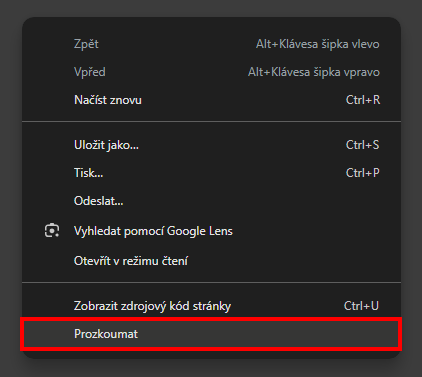
- Or right-click anywhere on the page and select Inspect
- Safari:
- First enable the Develop menu in Safari Settings → Advanced by checking Show Develop menu.
- Then open Develop → Show Web Inspector.
- Chrome, Edge, Firefox:
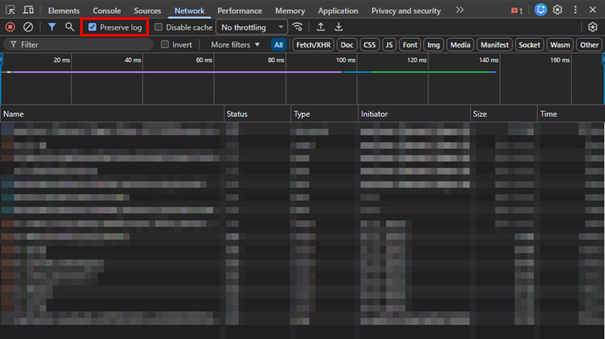
- In the top bar, select the Network tab.

- Enable log preservation:
- Chrome, Edge: Preserve log
- Firefox: Persist Logs
- Safari: not required — logs are preserved automatically
- Reload the page where the slowdown occurs.
- Perform the actions that cause the slow loading.
- Save the log file:
- Chrome, Edge, Firefox:
- Use the download/export button
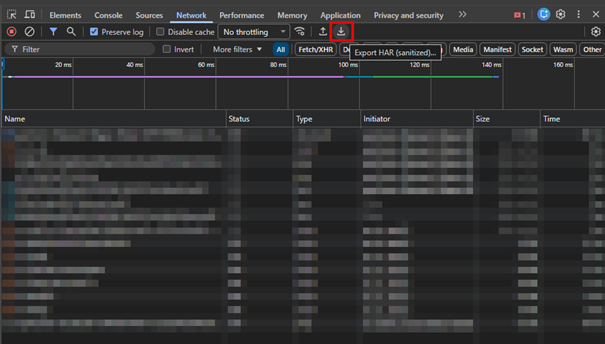
- Use the download/export button
- Safari:
- Right-click in the Network tab and select Export HAR
- Chrome, Edge, Firefox:
Summary
The steps above help diagnose browser-related performance issues. Since slow loading can be caused by many variables, it is important to provide as much information as possible.
Please include:
- whether the slowdown is constant or occurs only at specific times
- which browser and version you are using
- whether you tested the issue in another browser or in incognito mode
- screenshots showing cache clearing or browser settings
- screenshots from the Network tab or any error messages from the Console
- a video reproducing the issue
- the exported browser log (.HAR file)
Send all information along with a description of the issue to integrations@packeta.com.