Getting started
Module Installation
You can find the latest version of the module on Github. Import the downloaded file in the administration panel under OpenCart Extensions → Installer.
Basic Module Settings
Open the Packeta → Settings tab.
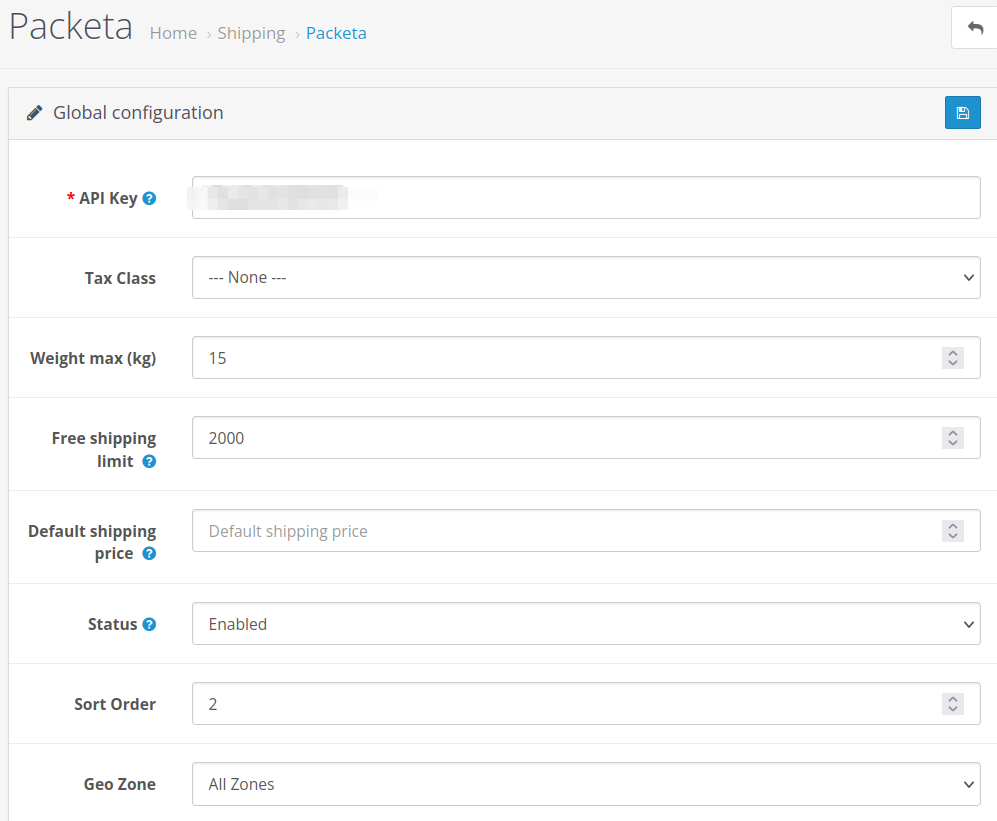
Enter your API key and fill in the E-shop identifier with the sender identifier from your client section. Set the maximum shipment weight and the default shipping price.
Creating Shipping Zones
Opencart does not support home delivery. In the Shipping zones you set up the price of the delivery to your country of choice.
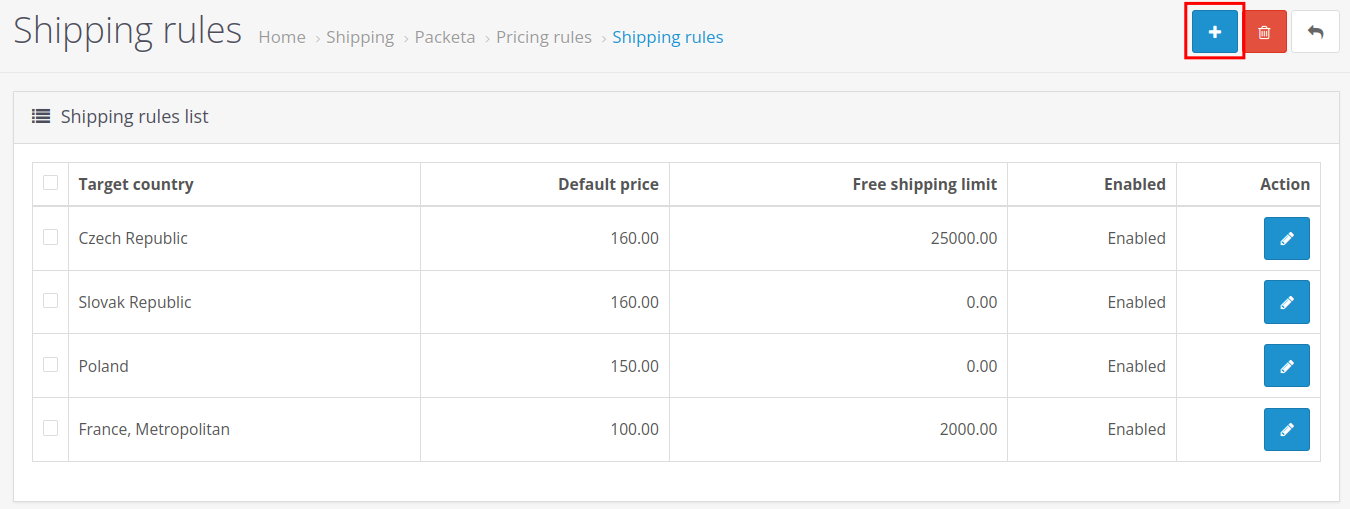
By setting up a shipping zone for a specific country you allow both Packeta and carrier pick-up points as well as boxes. For example in Hungary this will enable Packeta Pick-up Points, Foxpost boxes as well as HU Post pick-up points.
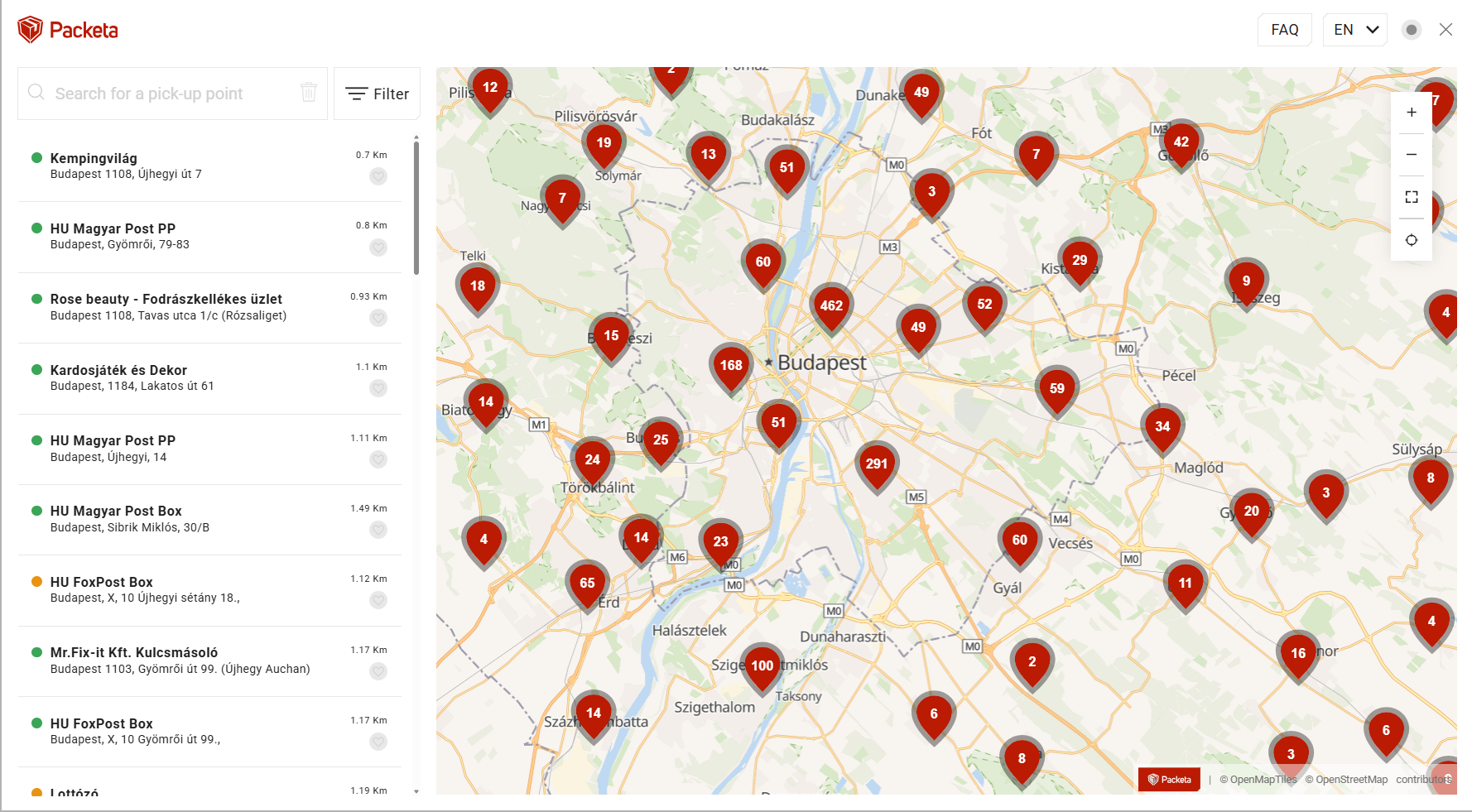
Open the Packeta → Pricing rules tab. All available shipping zones will be displayed. Click the Edit button.
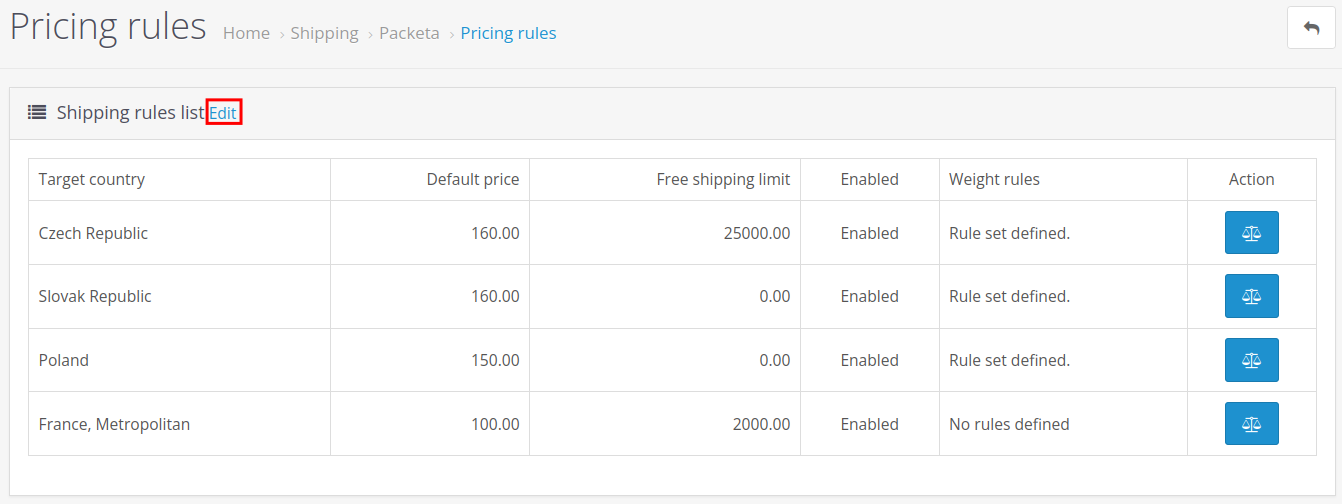
Add a new zone using the + button.
Select a country from the dropdown menu and enable the service by switching Enabled to Enabled. You can set a default shipping price and a free-shipping limit. These values will override the global module settings.
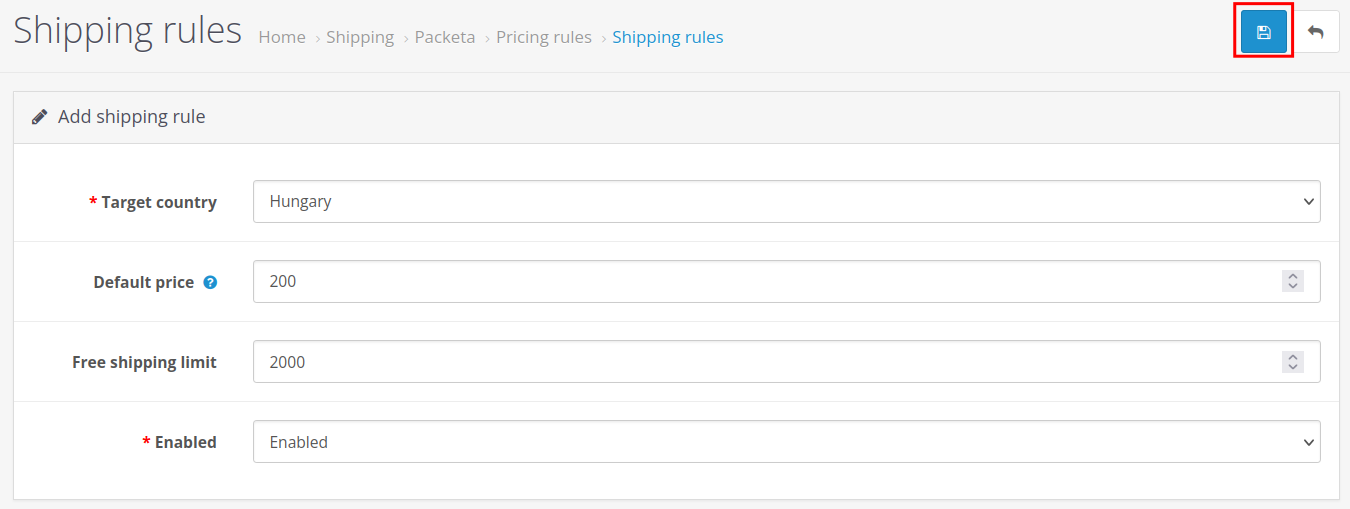
Save the zone by clicking the floppy disk icon in the top right.
For delivery to external network (Foxpost, Paczkomaty, etc.) allow external pick-up points in your client section.
Defining Weight Rules
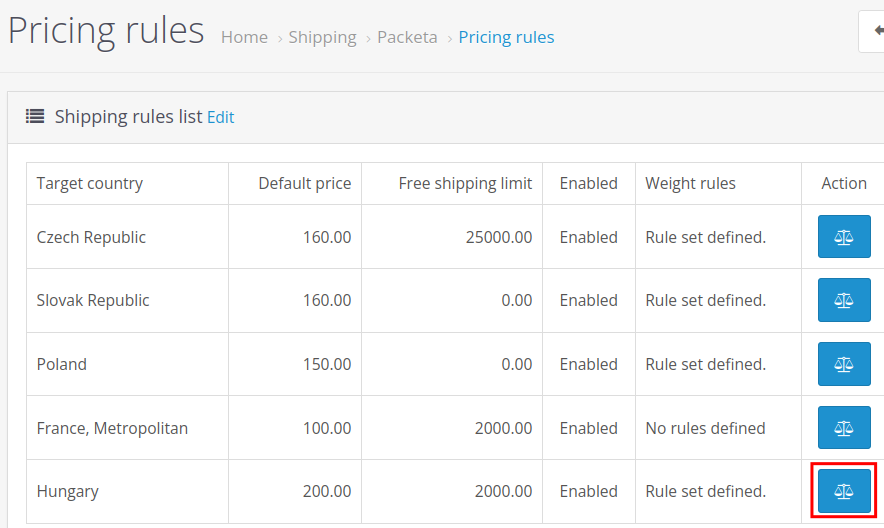
Open the Packeta → Pricing rules tab again. Select the created zone and click the scale icon.
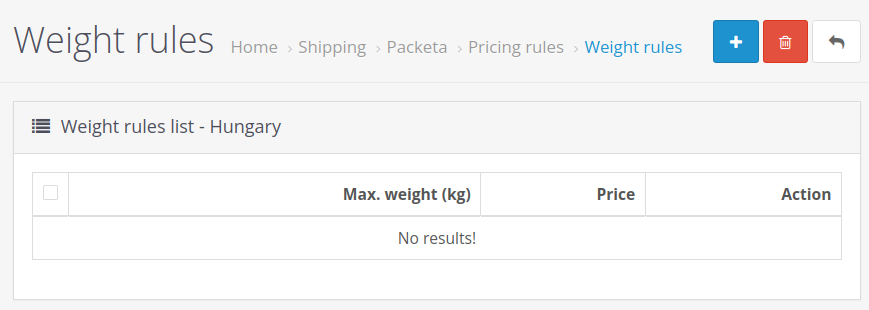
In the next window, click the + button to add a new weight rule.
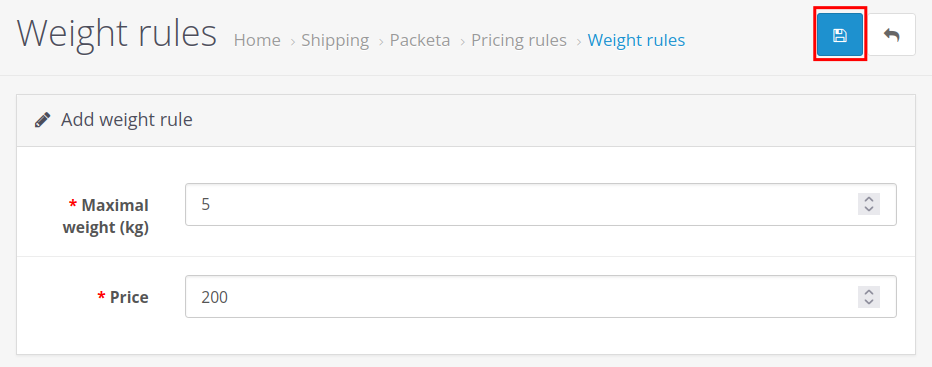
Enter the maximum weight and save the window.
Working with the module
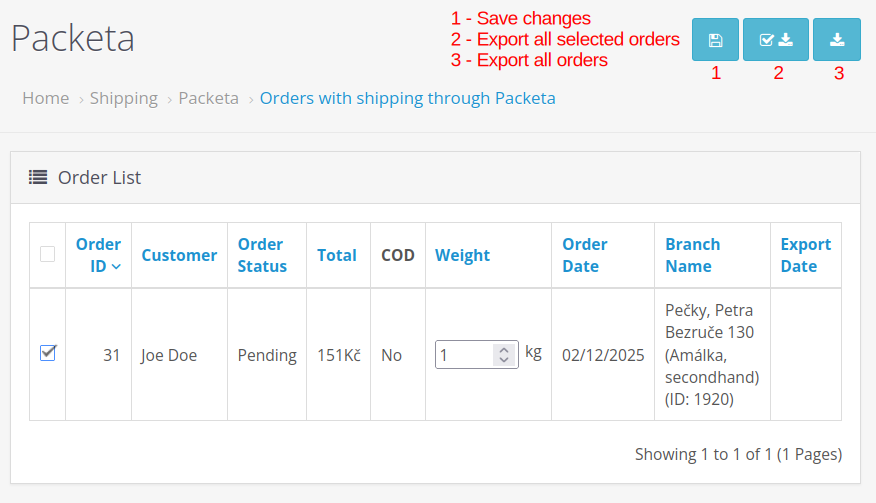
You can view customer-created order in Packeta → Orders. Opencart does not support direct packet submission. You must generate an export and upload it to the client section.
Import to client section
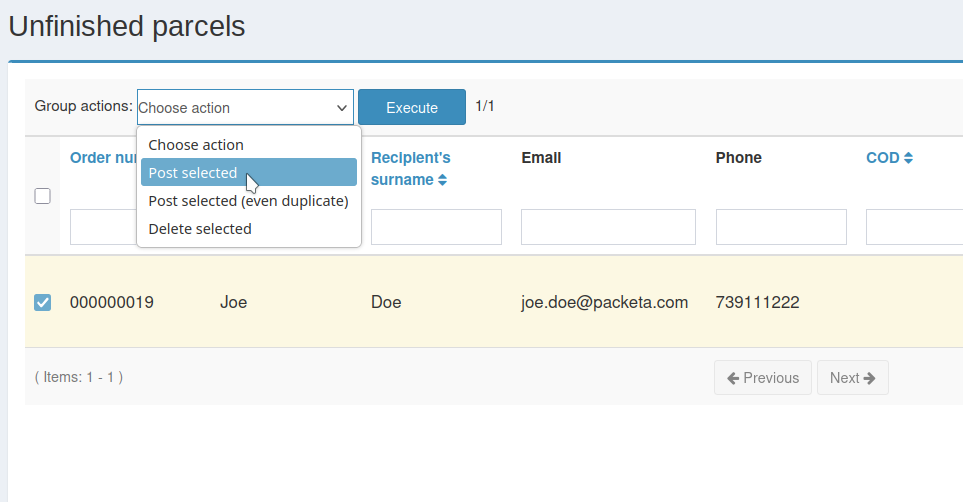
The created file is in a ready to import to client section format. Import the file in Client section → Parcels import. After the import, the orders will appear in the Unfinished parcels overview. Select the orders you want to submit and choose Submit Selected from the Bulk Actions menu. A customer-created order can be found under Packeta → Orders. Select it and click Export selected orders.
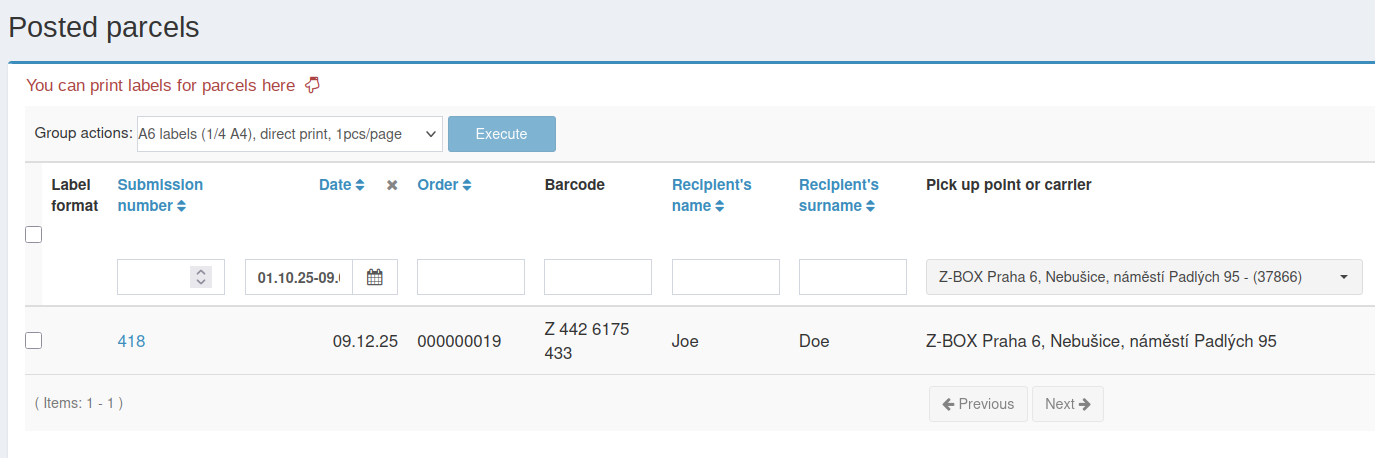
Once submitted, the packets will appear in the Posted parcels overview. You can now print the label and drop off the packet at a collection point.
Module Update
The module is updated in the same way as it is installed. Download the new version of the module and import it into the administration. The extension will automatically detect whether it is an update of an existing version.
Didn’t find the answer to your question? Our team is available at integrations@packeta.com.