Getting started
General Information
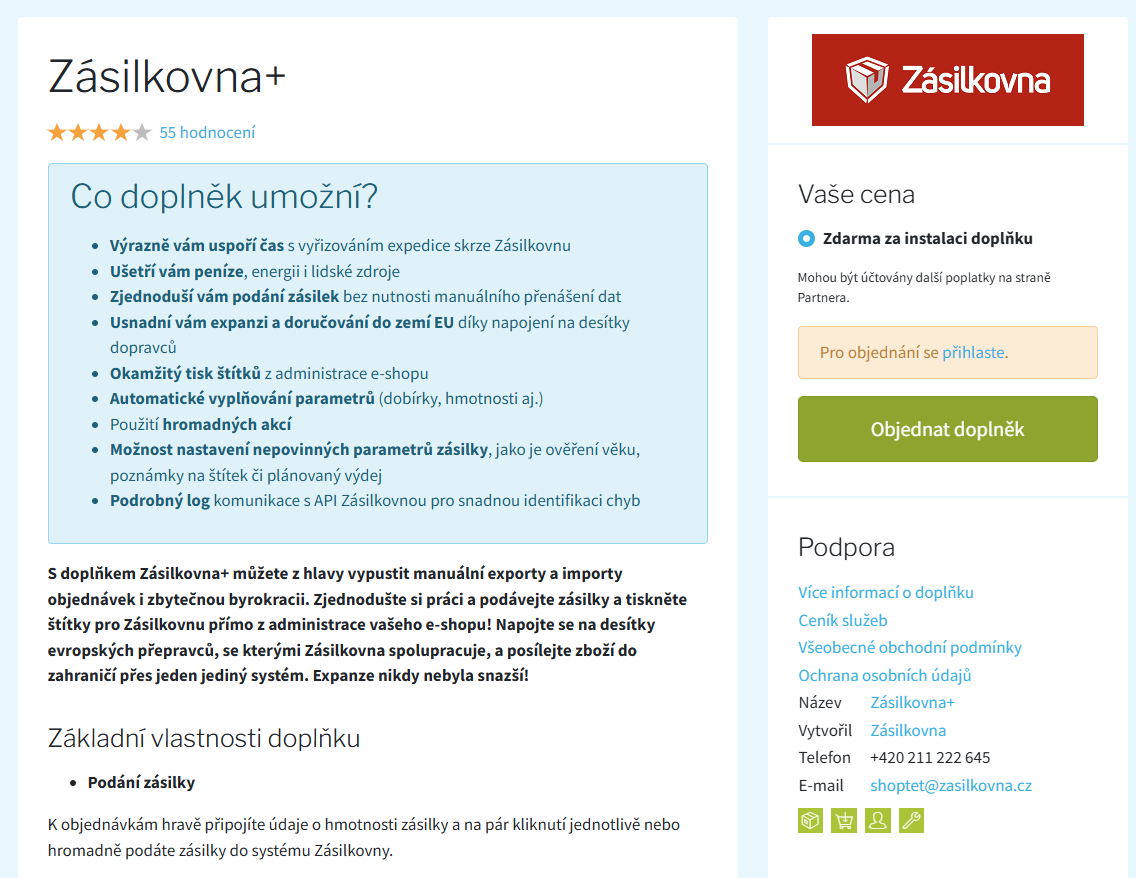
The plugin is available in the Shoptet admin interface under the Integrations section under the name Packeta+. The plugin supports Czech, Slovak, and English.
The list of carriers updates automatically every day. If we add a new carrier to our offer, it will automatically appear in your carrier list as well. Carriers that require customs declaration are not available in the plugin.
Not all Packeta external carriers are supported by Shoptet. Those are not available in the plugin.
Plugin Configuration
Download and install the Packeta+ plugin.
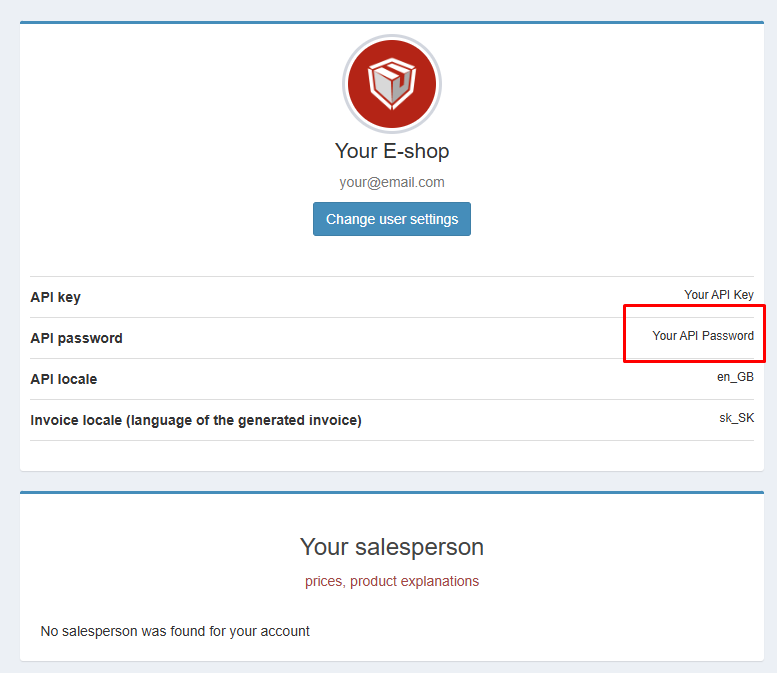
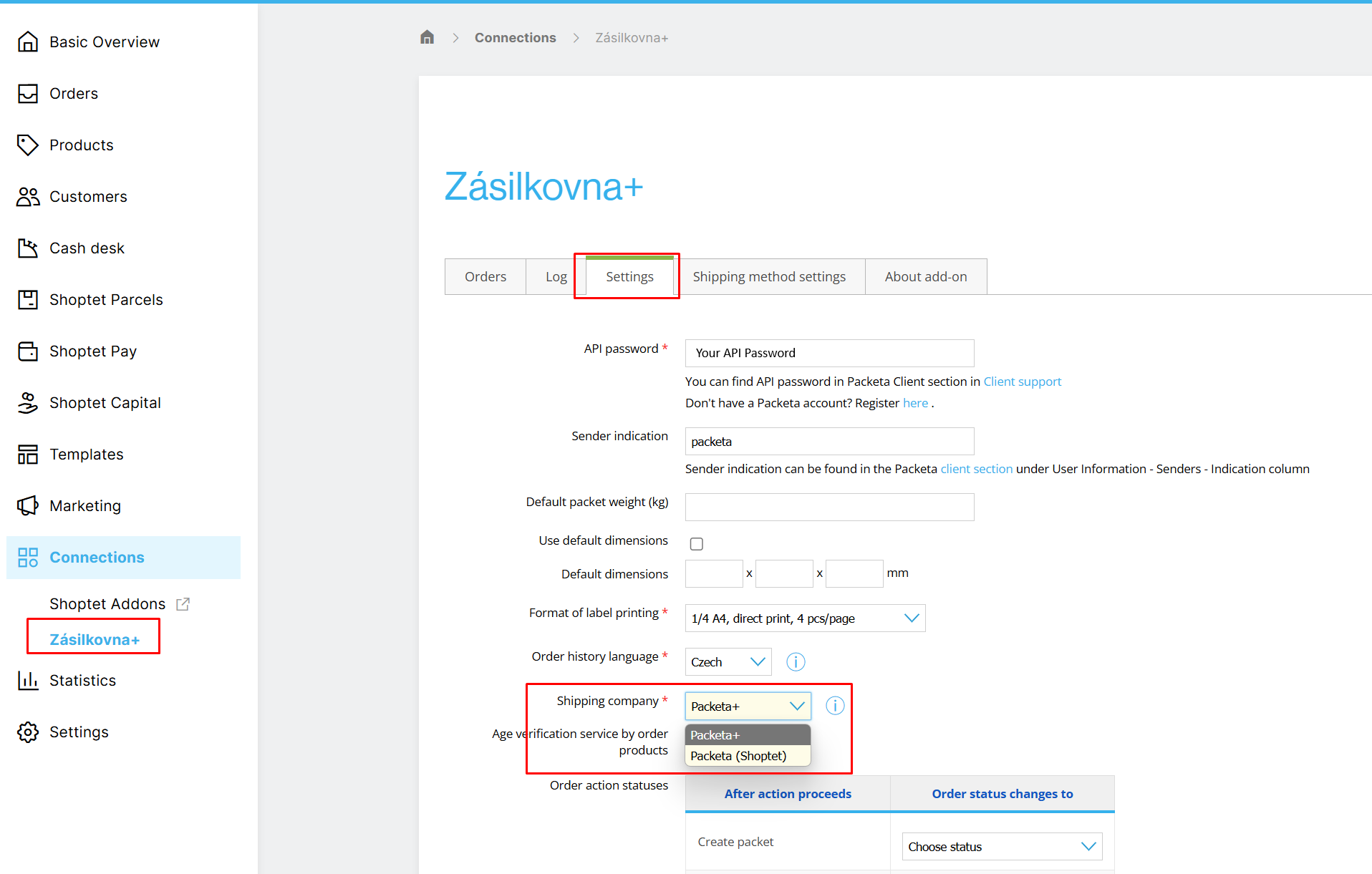
In Integrations → Packeta+ → Settings, enter your API password from the client section.
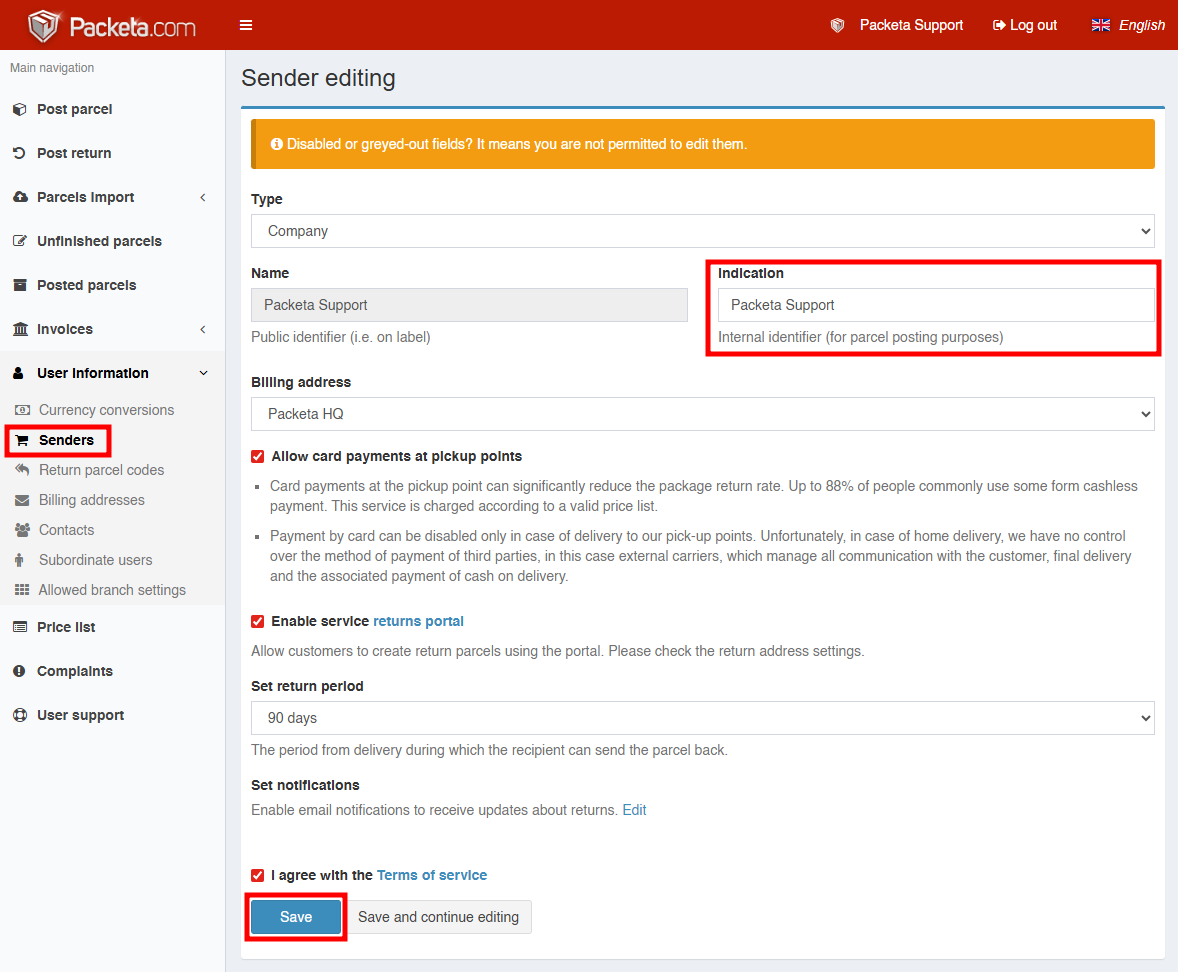
Under the API password, set the Sender. You can find it in the Senders section in the fourth column in the client interface under Label.
With this, your e-shop and the Packeta+ plugin are now connected to Packeta.
Carrier Setup
In Integrations → Packeta+ → Settings, choose the label format. We recommend A6 (1/4 A4, direct print, 4 pcs/page).
Then select Packeta+ under the shipping company.
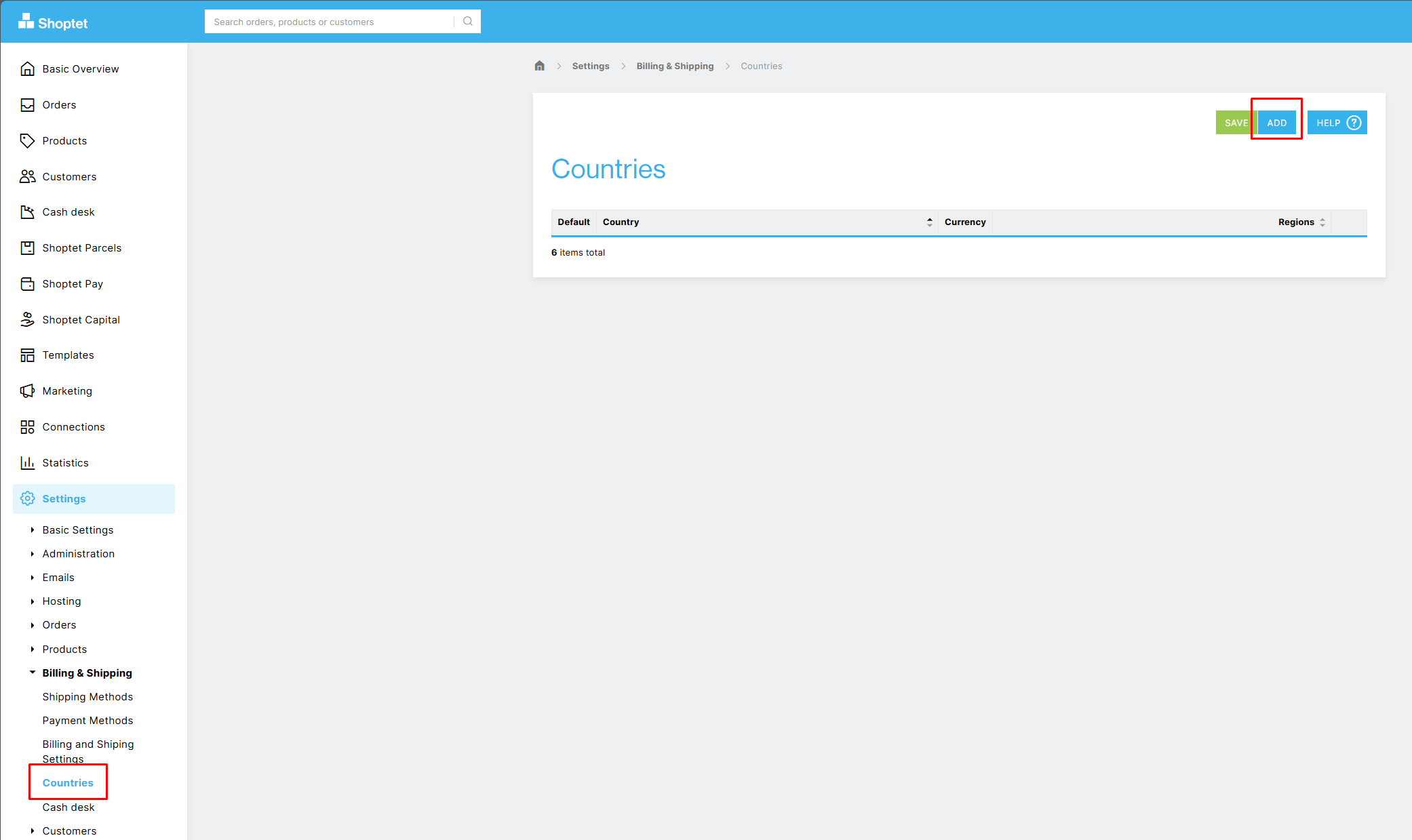
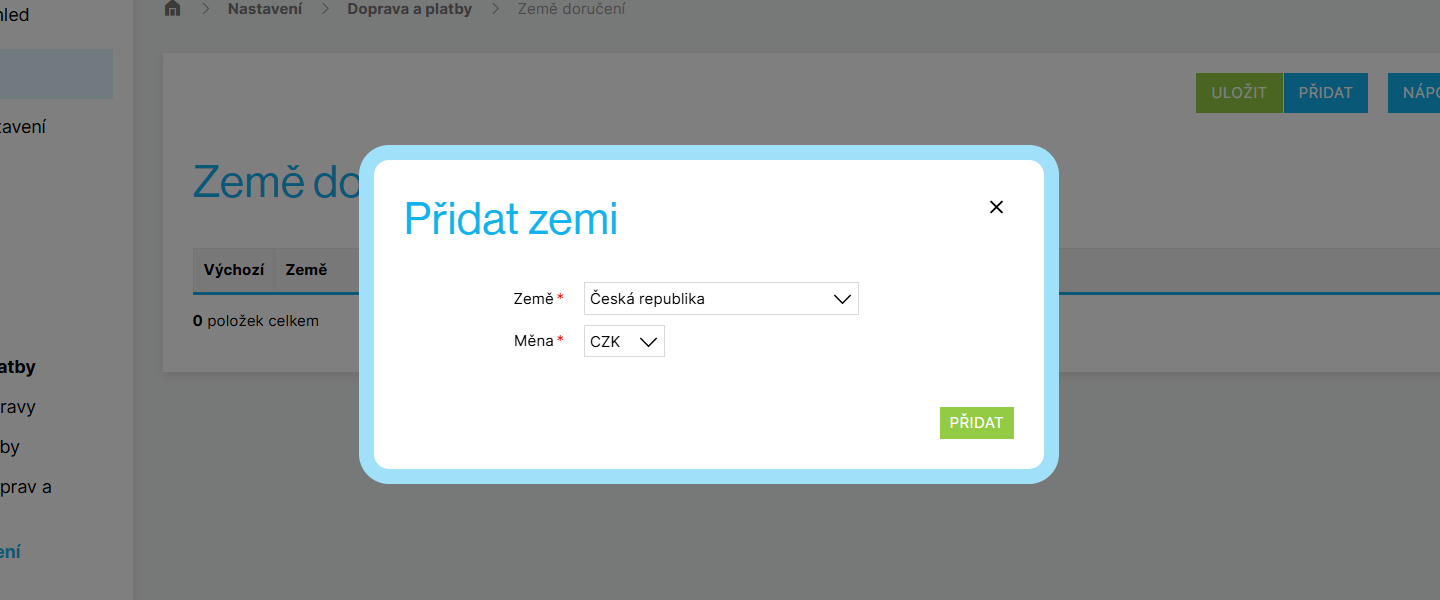
In Settings → Shipping & Payments → Delivery Countries, create a delivery zone. Select the country (CZ), currency (CZK), and save.
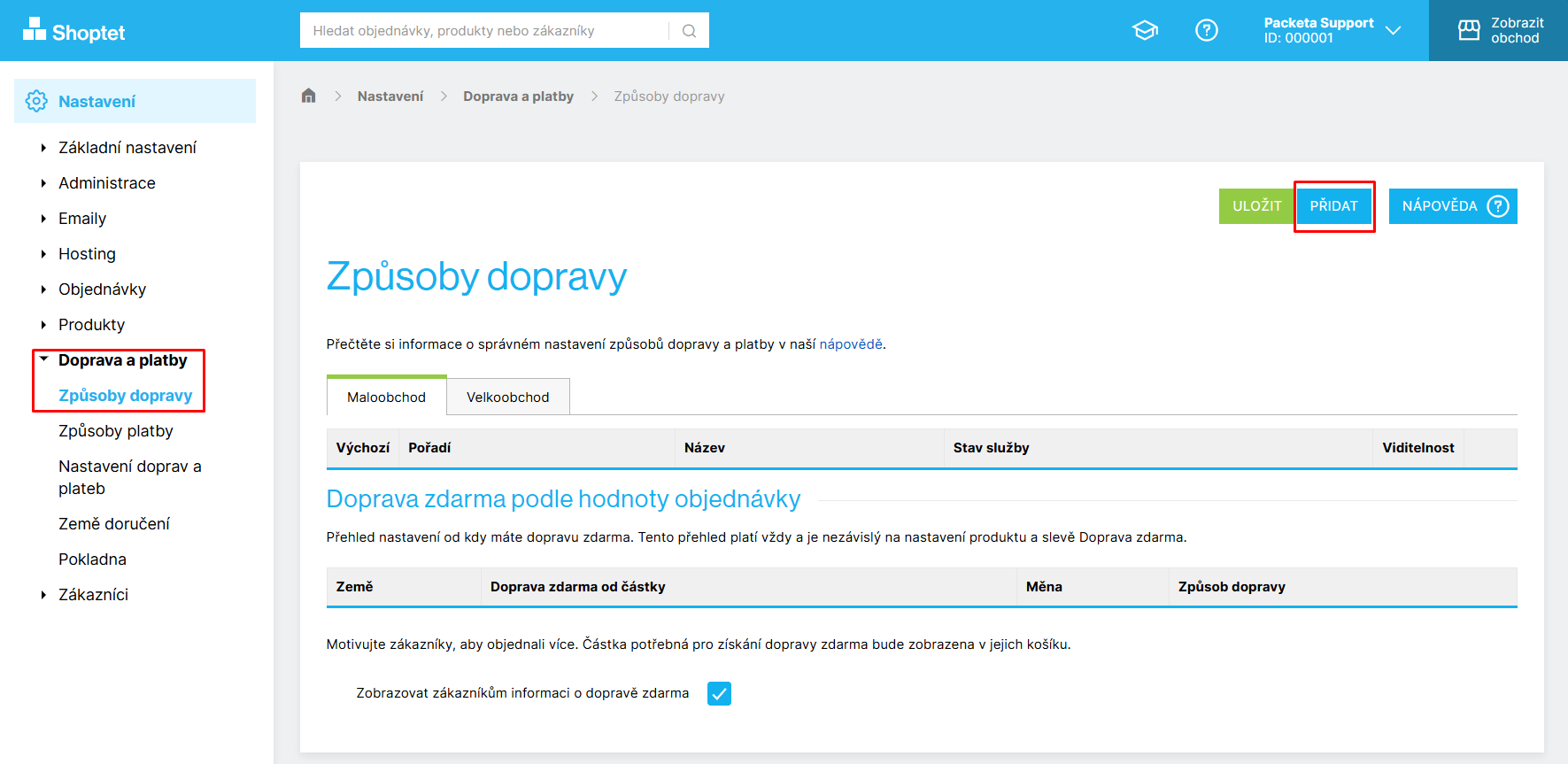
In Settings → Shipping & Payments → Shipping Methods, create a new shipper by clicking Add. Name the new shipping method, choose visibility and payment options.
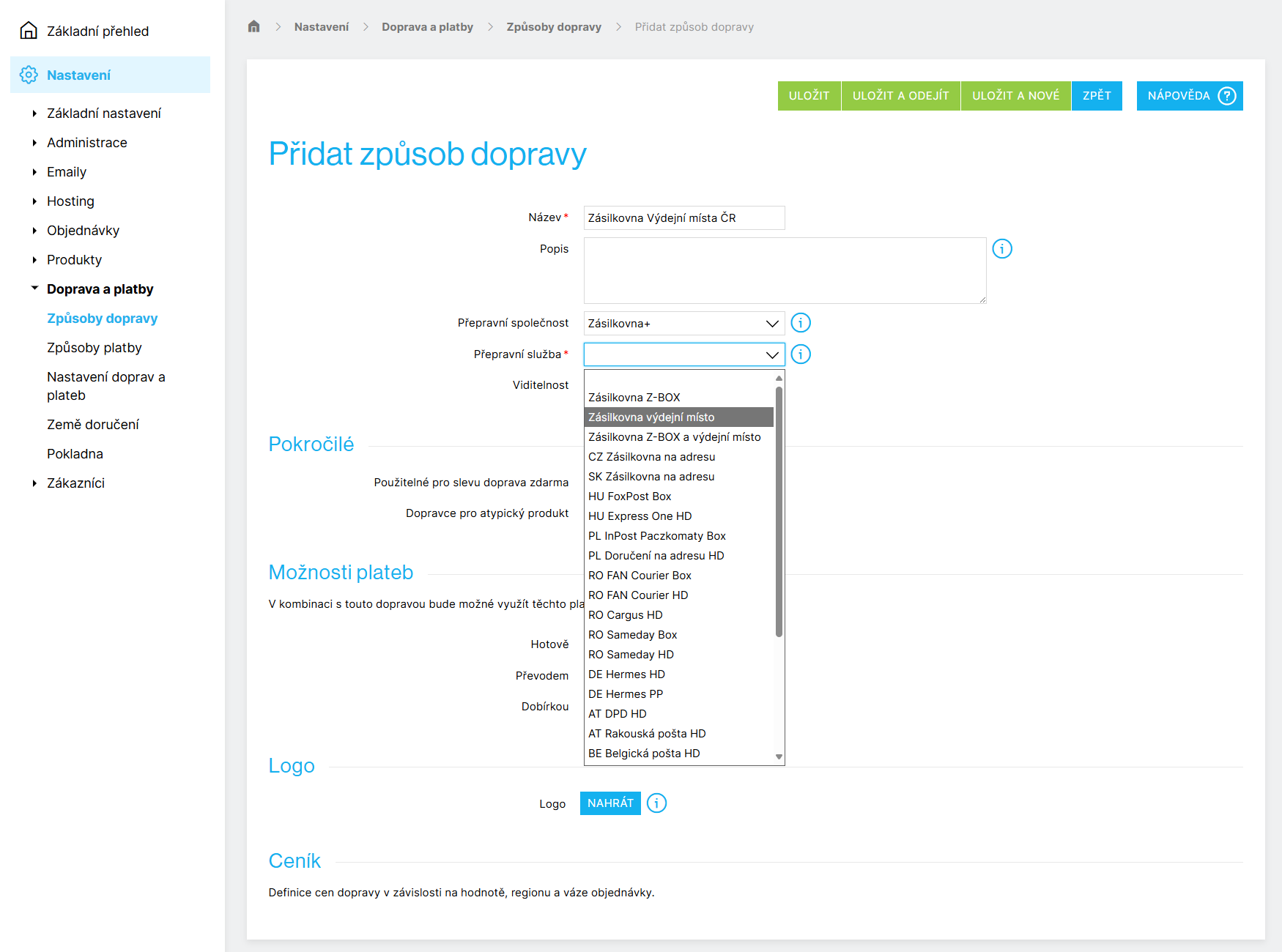
For Shipping Company, choose Packeta+. Select the transport service (e.g. Packeta Pickup Points) and save.
At the bottom of the window, you will find the Price List. Add a price list for each country you want to deliver to. In our example, that is Czech Republic (CZ). Click Add and enter the shipping price.
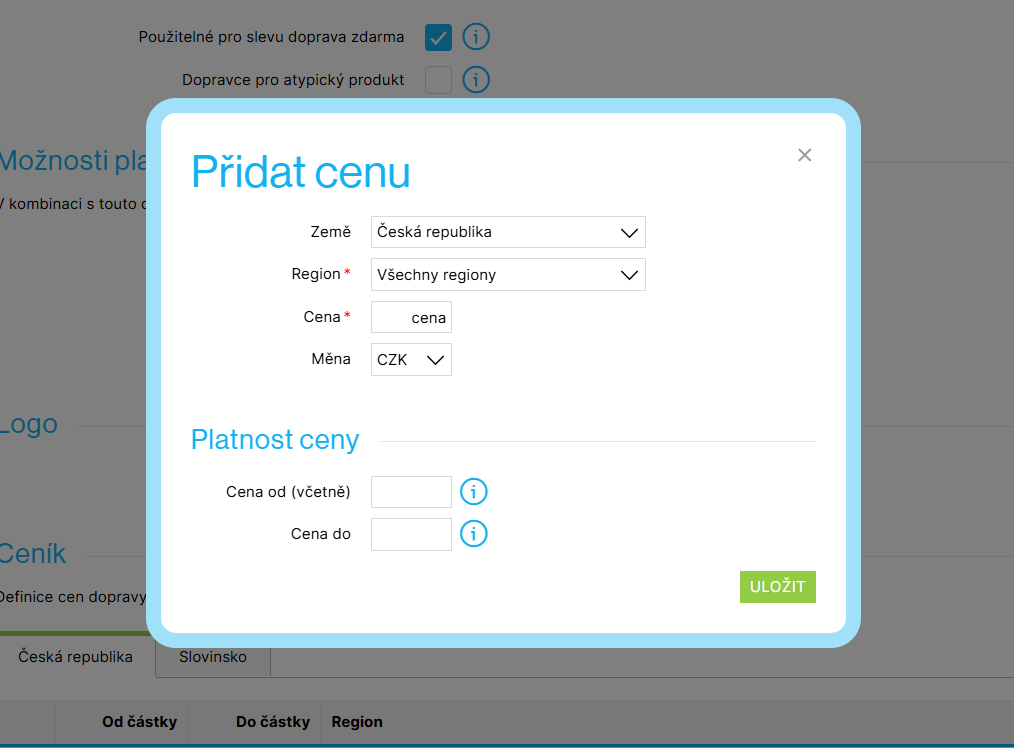
You will now see CZ pickup points in your list of shipping methods, and they will also be available in your e-shop checkout.
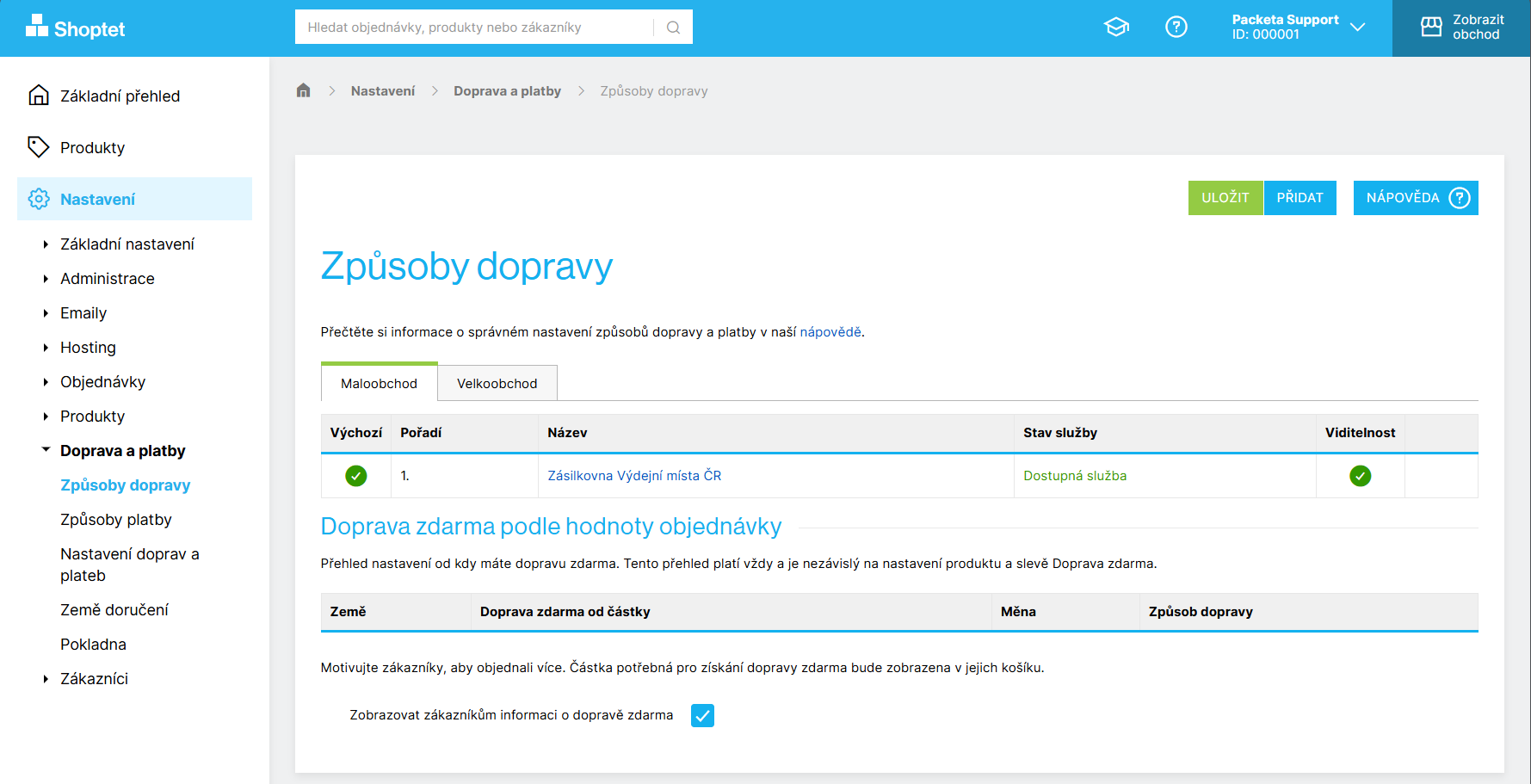
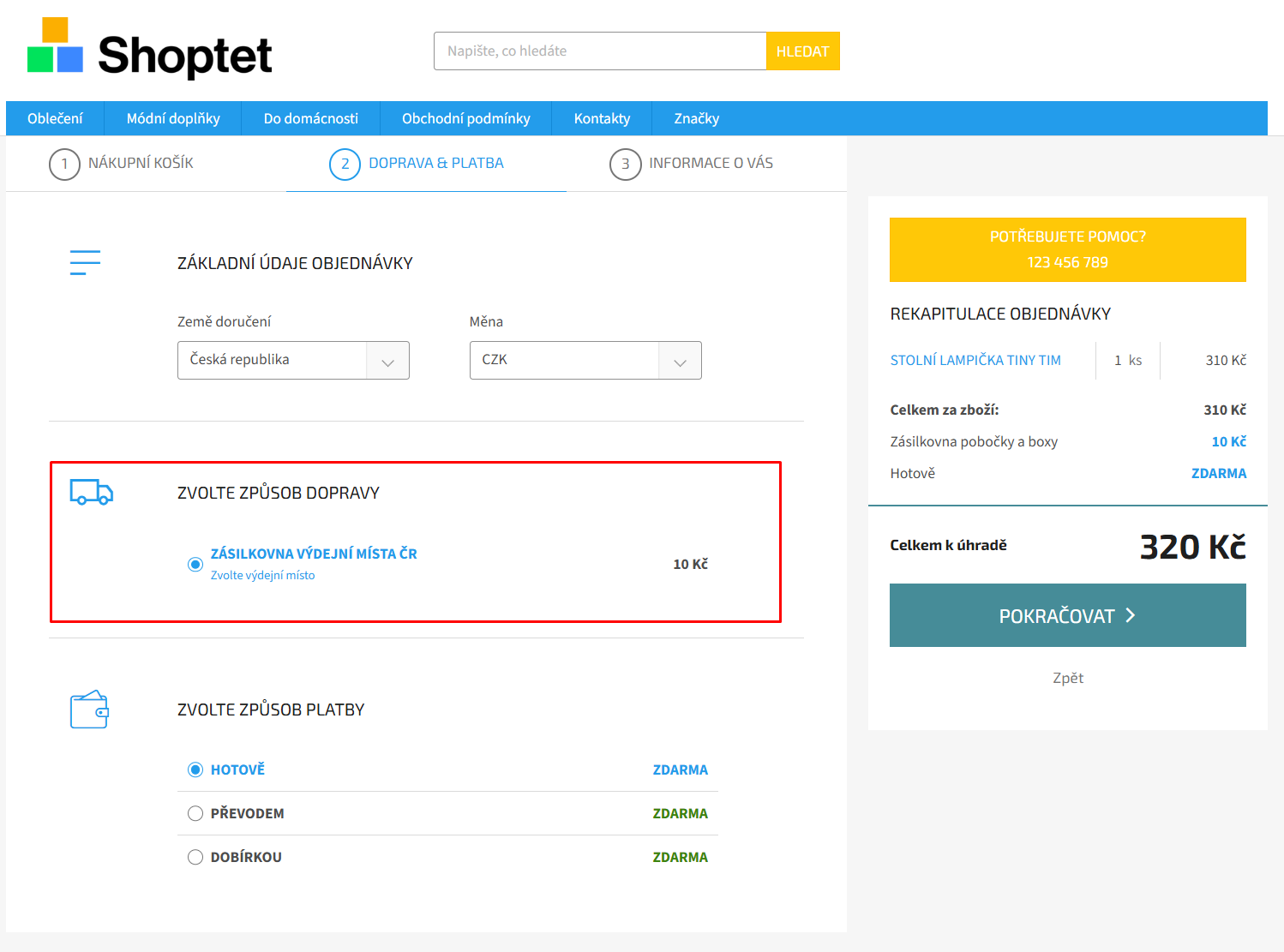
You can configure shipping for other countries and contracted carriers the same way.
For delivery to external network (Foxpost, Paczkomaty, etc.) allow external pick-up points in your client section.
How to Submit a packet
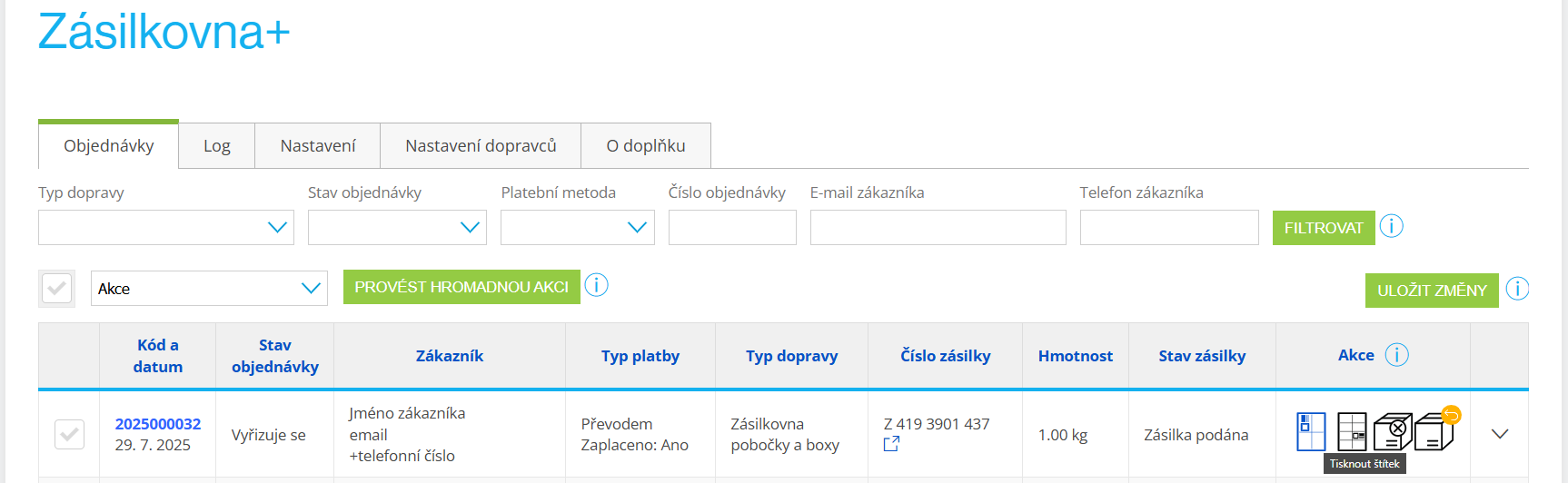
In Connections → Packeta+ → Orders, you will find an overview of orders where Packeta was selected as the carrier. You can submit packets directly from the plugin using the submit packet button.
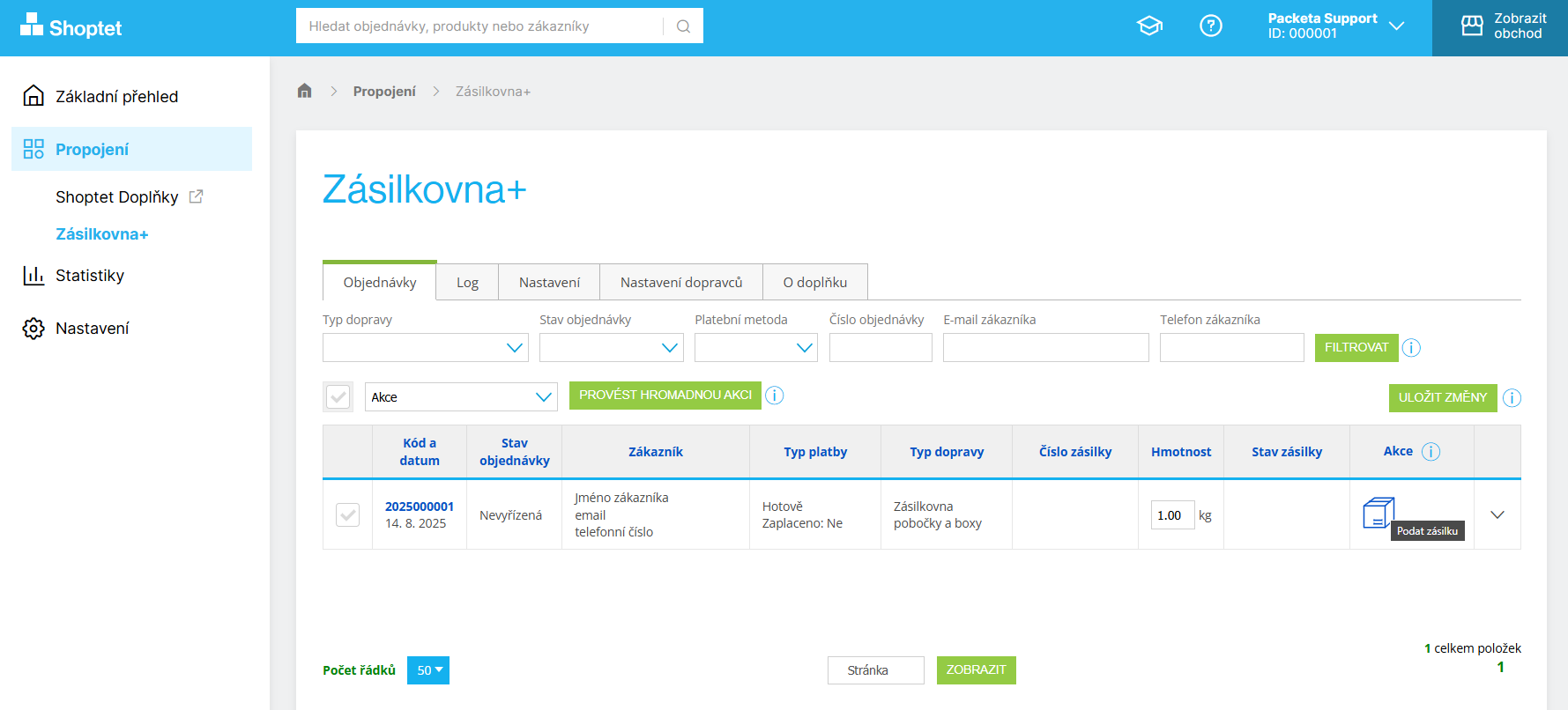
After submission, a tracking number is created and the label can be printed.
And that’s it.
In the next section, we describe the individual functionalities of our plugin.
Didn't find what you're looking for? Reach out to our integration support team at integrations@packeta.com.