Getting started
Module installation
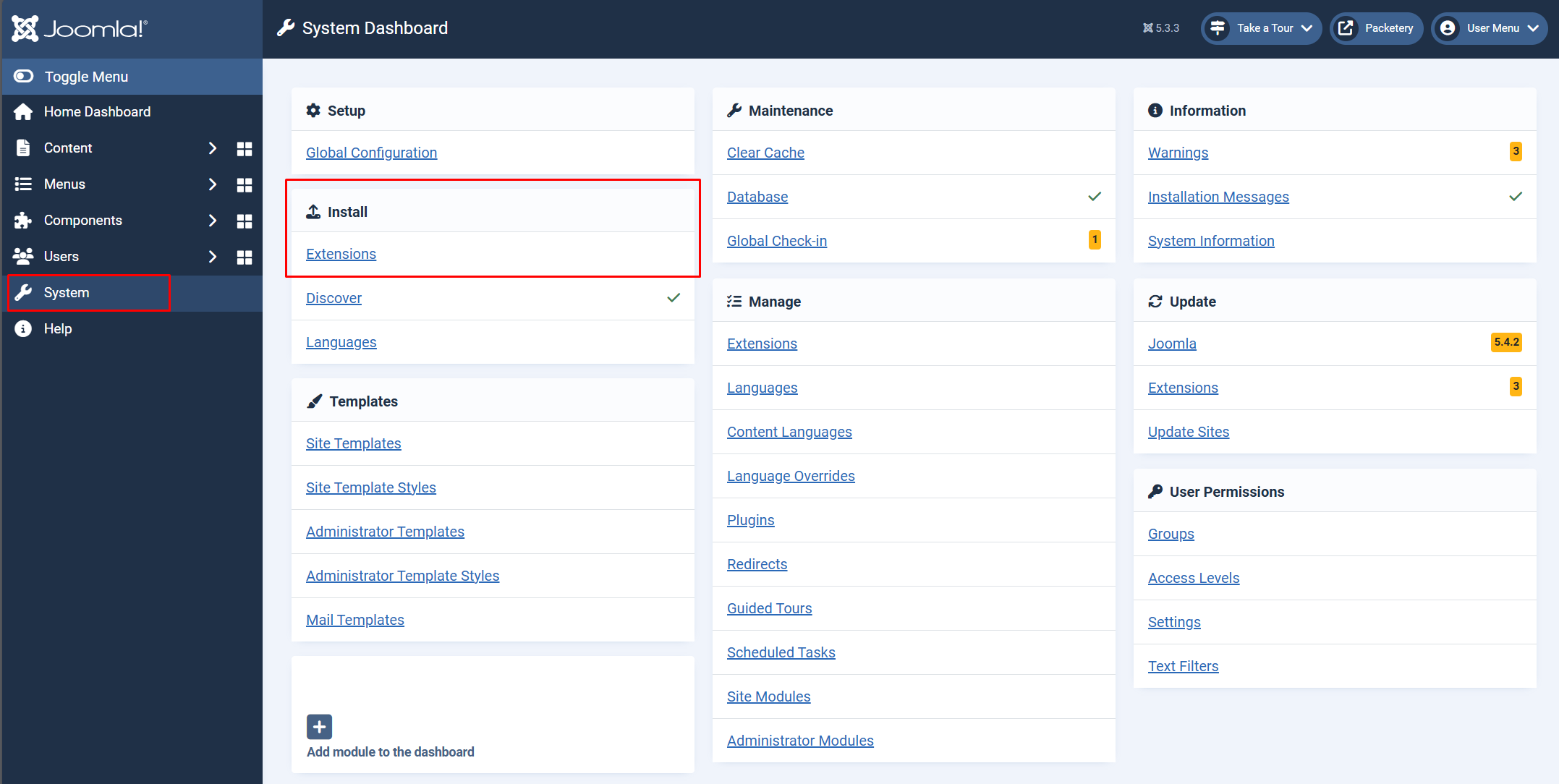
You can find the latest version of the module on Packeta GitHub. Download it to your PC. Log in to the Joomla system. In the left panel, select System → Install → Extensions. Drag and drop the installation package into the highlighted area or click Browse for file and select the installation package file.
Module configuration
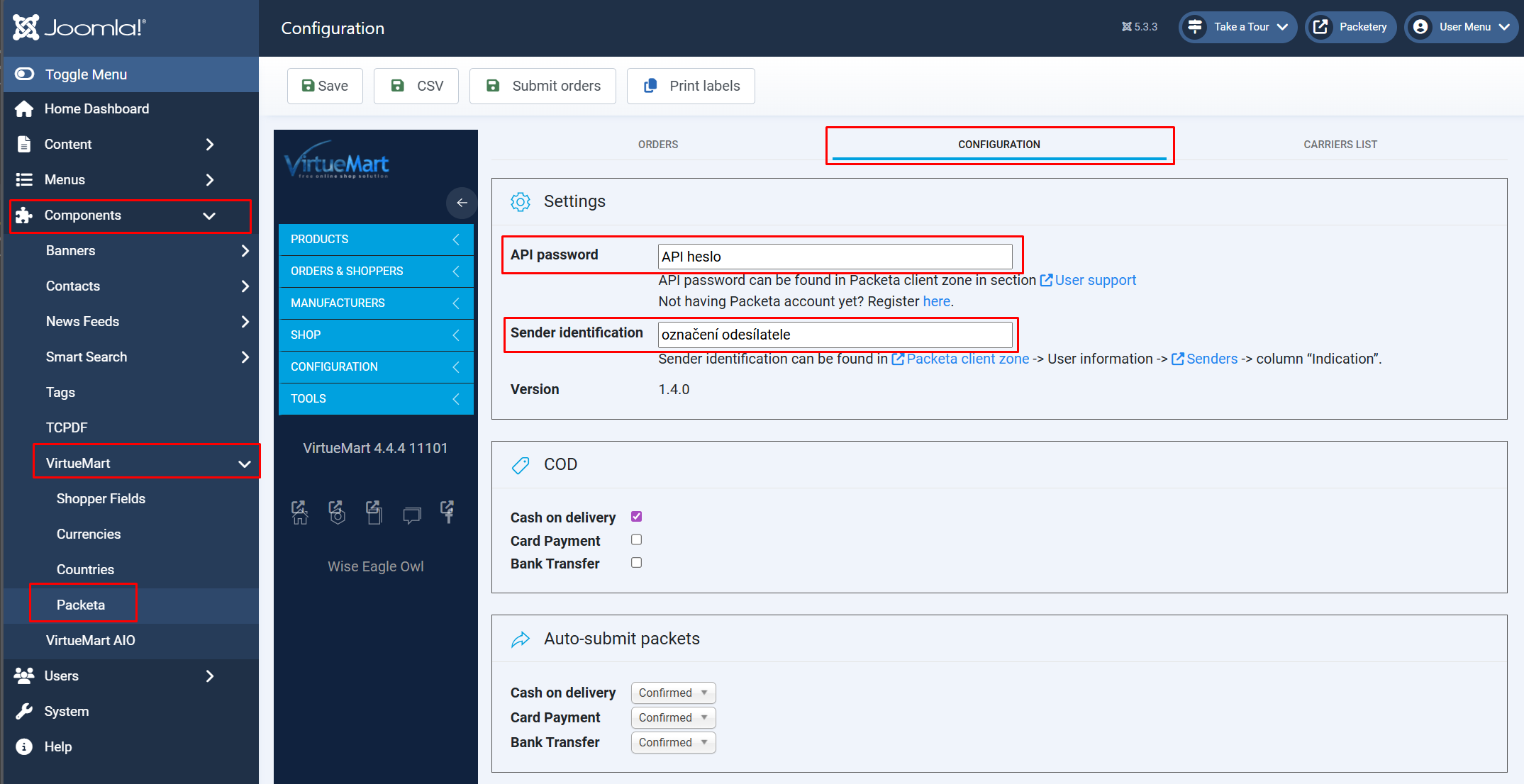
Open the Packeta module via Components → VirtueMart → Packeta. Then click the Configuration tab. Enter the API key and fill in the Sender identification with the sender indication from your client section. Select the allowed payment types for orders and cash on delivery.
Carrier setup
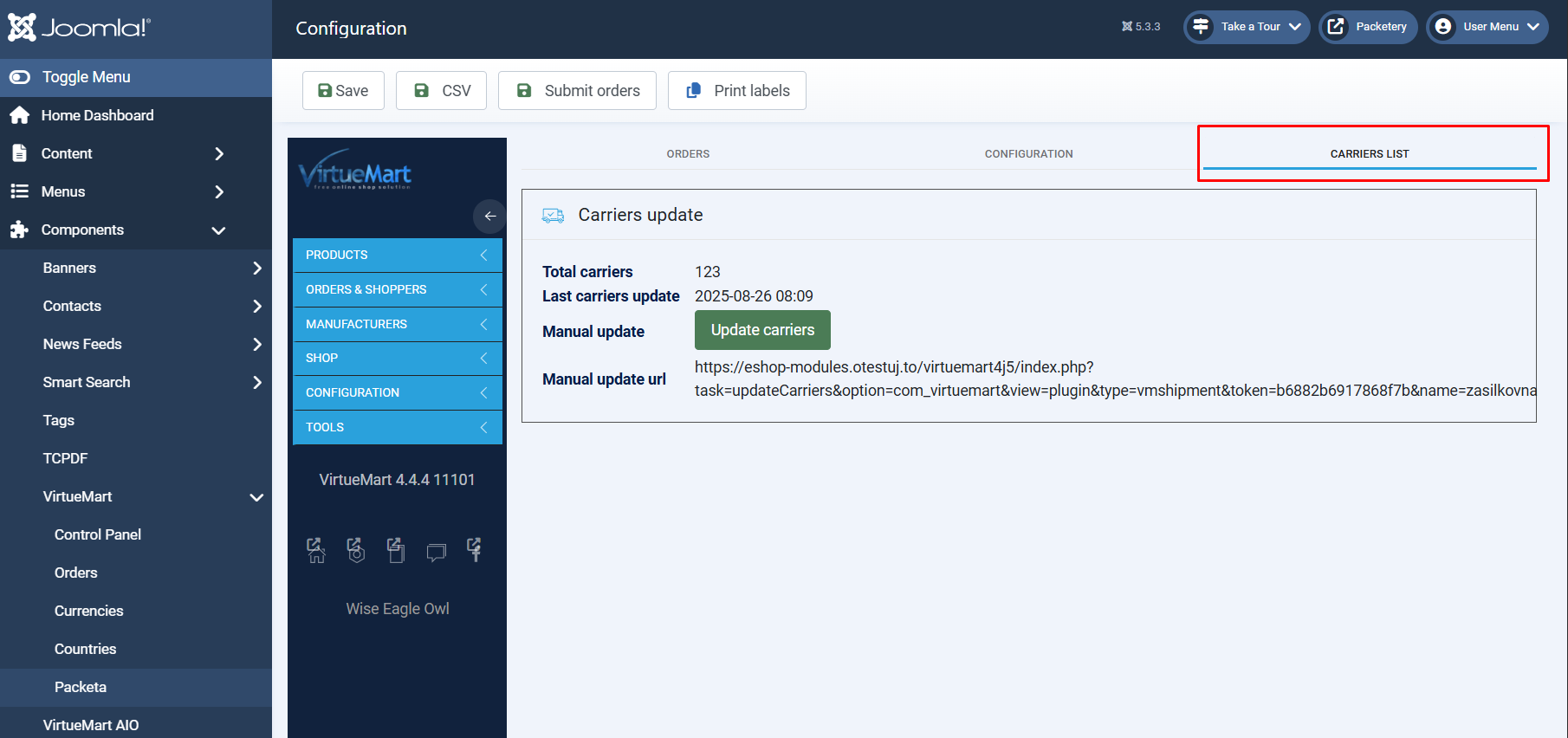
In the Carriers list tab, click Update carriers.
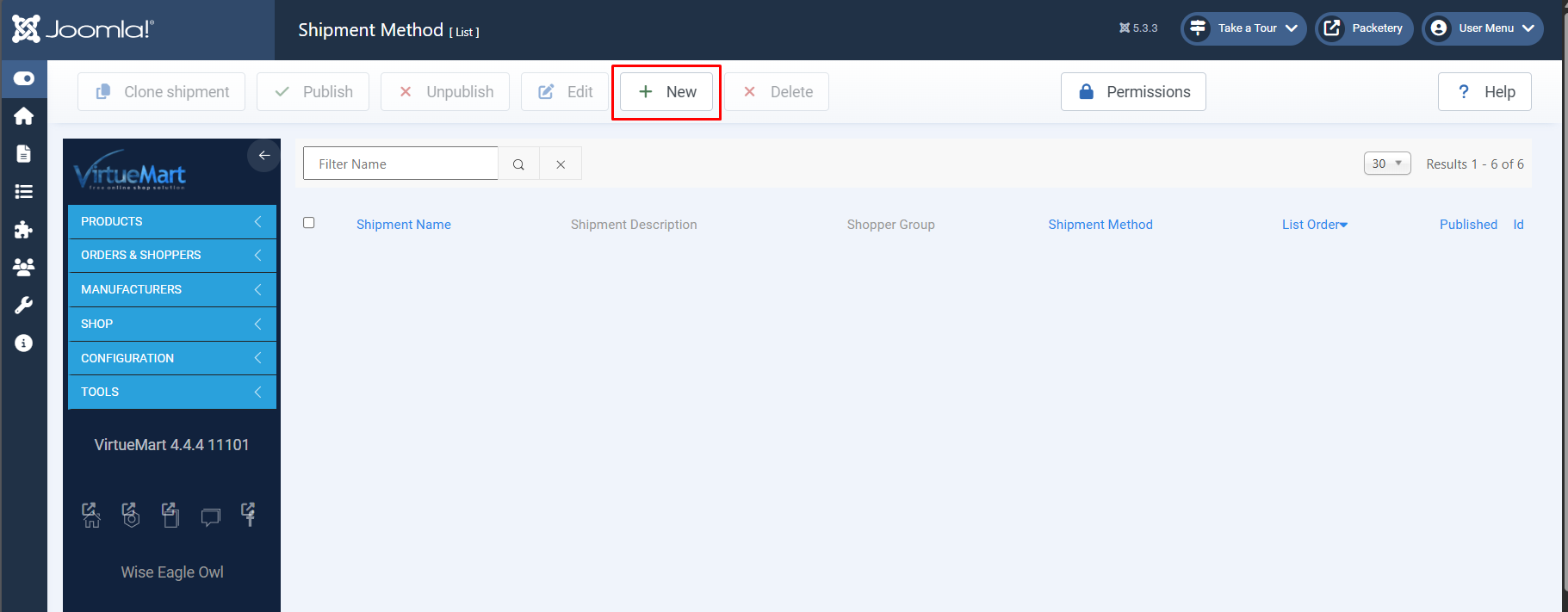
Go to Shop → Shipment methods and click New.
Fill in the name and alias. Select Shipment method: Packeta, choose the shipping currency, and save using the Save button.
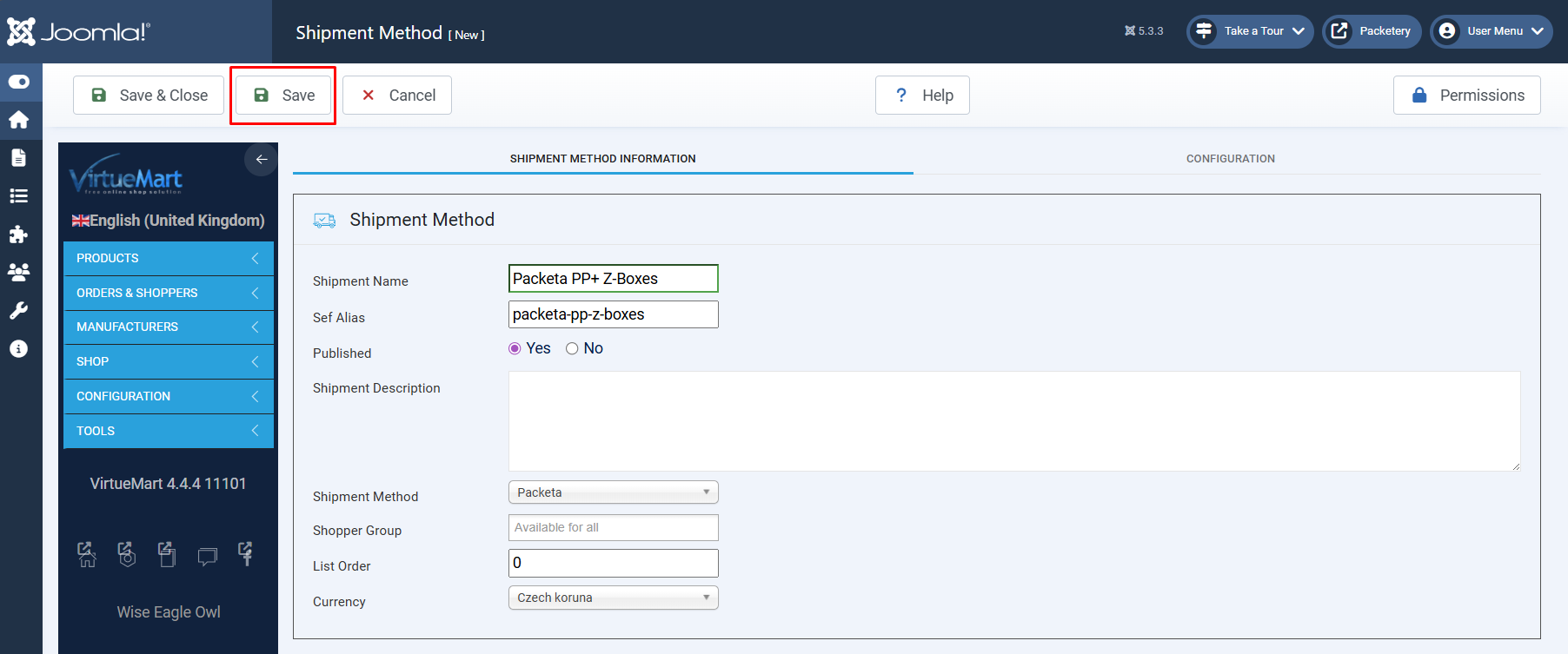
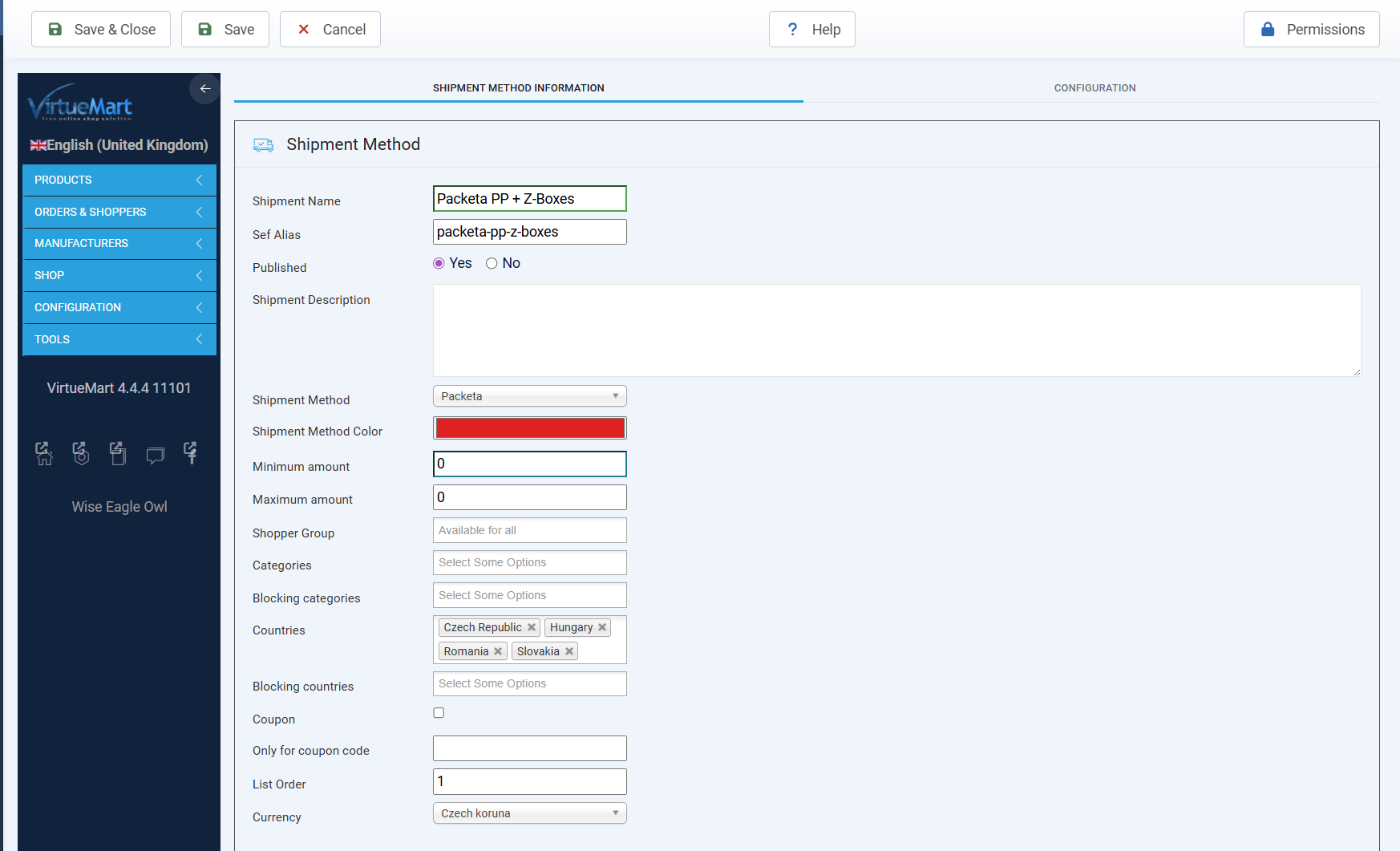
After saving, additional shipping options will become available. Among other things, you can specify delivery countries for the newly created carrier.
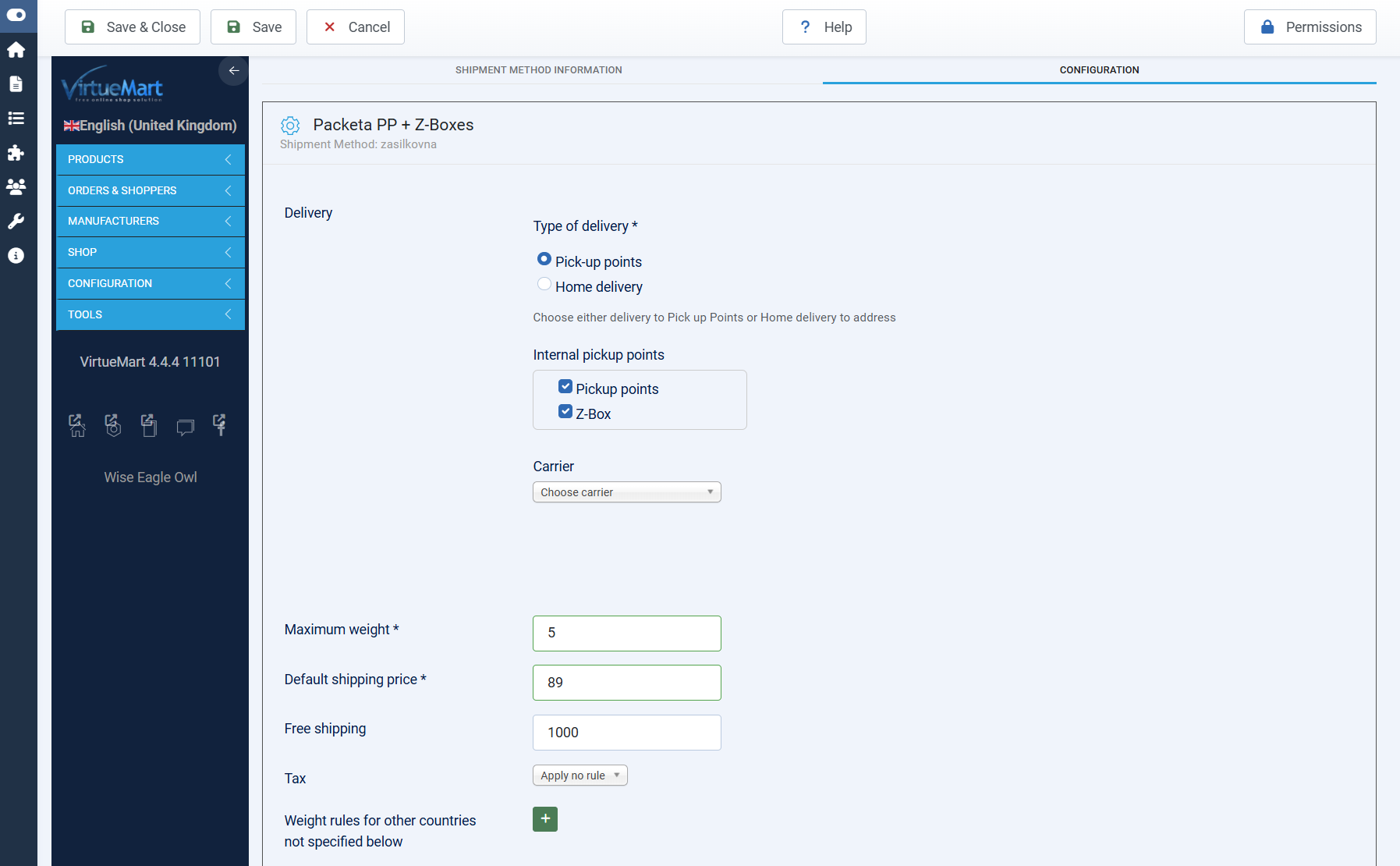
Go to the Configuration tab. Select the Pick-up points shipping type for delivery to Packeta pick-up points and Z-BOXes. These will be selected in the next step. Leave the Carrier field empty for delivery to Packeta pick-up points. Select the maximum parcel weight, standard delivery price, or the free shipping threshold.
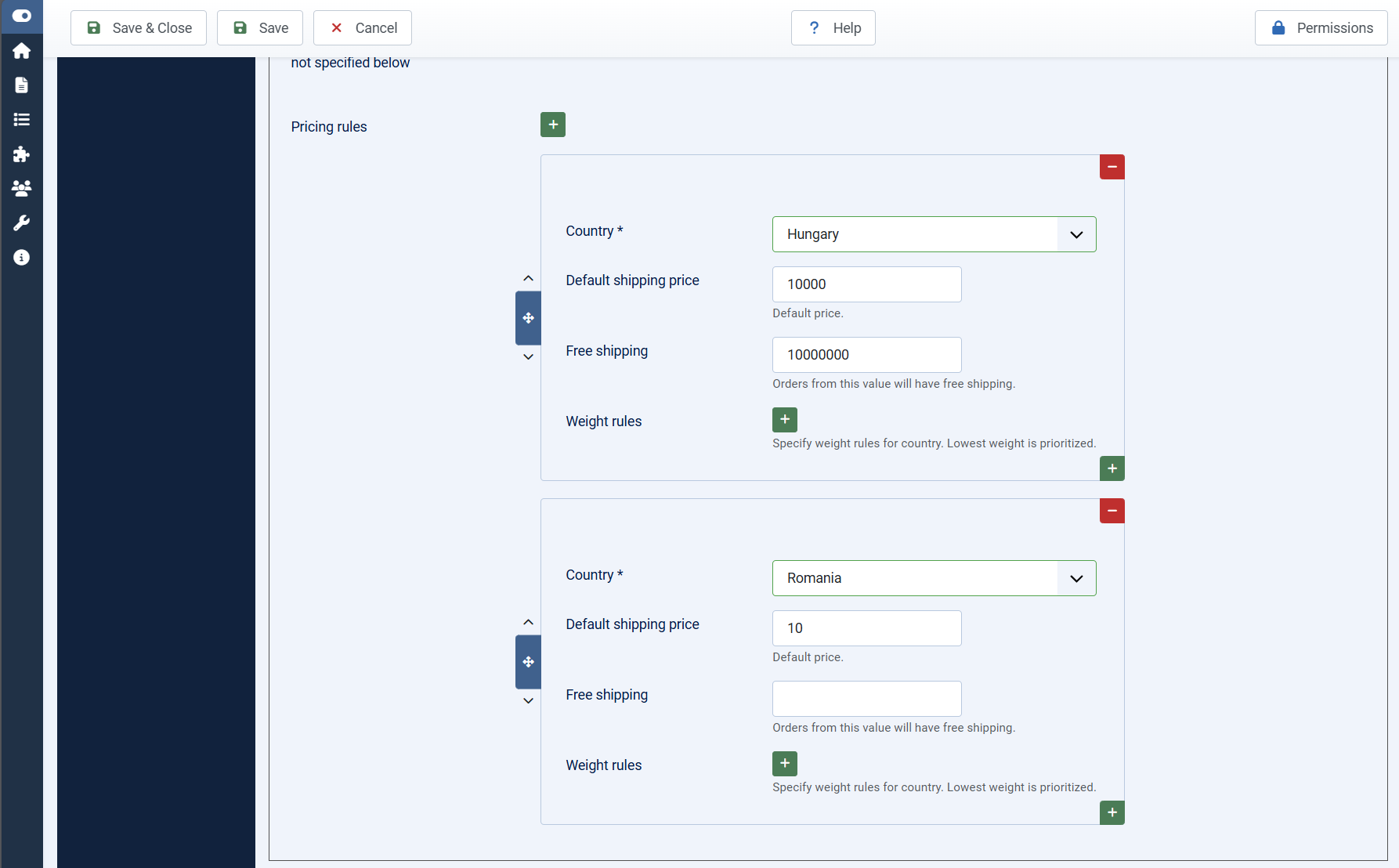
Below, you can set pricing rules for specific countries selected in the previous step. For example, you can set the delivery price for the Czech Republic to 89 CZK, for Hungary to 10,000 HUF, and for Romania to 10 RON. You can also set a free shipping threshold. The currency follows the settings in VirtueMart → Configuration → Currencies.
After saving, the pick-up point option will appear among the shipping methods in your cart.
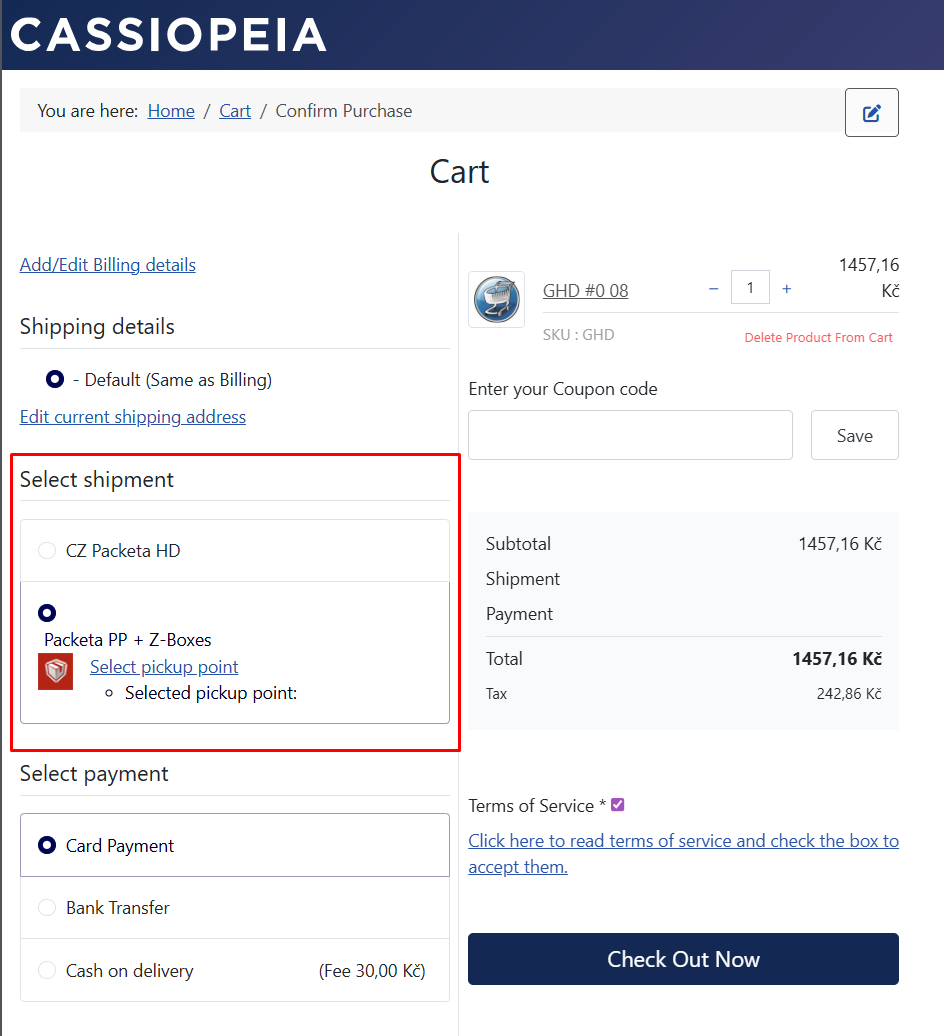
For delivery to external network (Foxpost, Paczkomaty, etc.) allow external pick-up points in your client section.
Packet submission
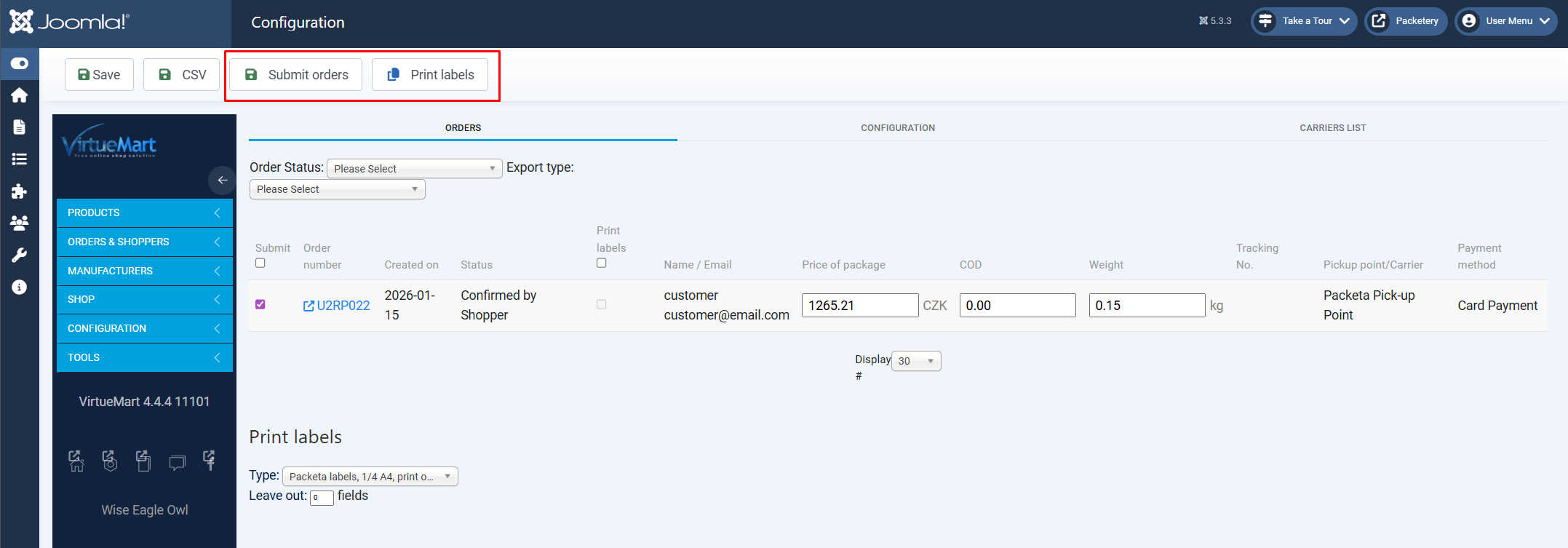
After successful completion, the order will appear in the order overview. You can submit it to Packeta using the Submit orders button. After creating the packet, you can download its label using the Print labels button.
Module update
The module update is performed in the same way as the installation. Download the latest version of the module from GitHub and follow the steps described in the Module installation section.
Didn’t find the answer to your question? Our team is available at integrations@packeta.com.