Features
Orders Overview
In the orders overview, you will find information about individual packets. You can filter by shipping method or order status. You can also edit individual packets or make bulk changes.
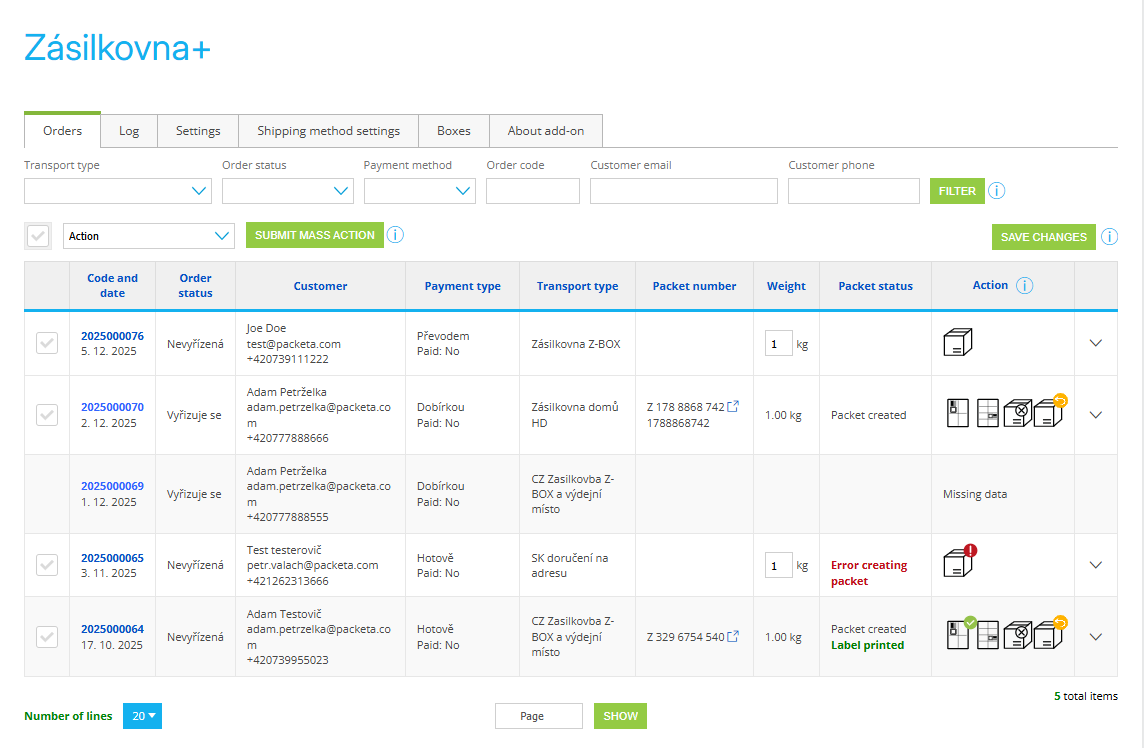
Code and Date
- Order number and creation date
- Hovering over the order number shows a preview of its details
Order Status
- Shows standard and custom order statuses set in Shoptet
- Can be filtered using the filter above the table
Customer
- Customer’s first name, last name, email, and phone number
- Contact information can be edited in Shoptet admin under Orders → Overview
Payment Type
- Shows selected payment method and status (paid: YES/NO)
Shipping Type
- Shows shipping method according to carrier settings (Settings → Shipping and Payments → Shipping Methods)
- Can be filtered using the filter above the table
Packet Number
- After successful packet creation, a 10-digit “Z number” is displayed, also used as a tracking number
- For packets sent via an external carrier, their tracking number is also displayed
- Click the ↗ icon to view the online tracking
Weight
- If the product weight is not set in the product details, the packet weight must be entered manually before submission
- Changes are reflected in the order details
- After the packet is submitted, the weight cannot be changed
Weight is a required parameter for submitting a packet.
Packet Status
- Packet submitted
- Label printed
- Packet canceled
- Error during packet submission
- Error printing label
- Error canceling packet
Packet Actions


Print Label
- Creates a label that is automatically downloaded
- A notification appears above the orders list when the label is successfully created
- If printing an external carrier label fails, the Packeta label is printed automatically


Cancel Packet
- Allows canceling a submitted packet
- Cancellation is recorded in order history
- Successfully canceled packets remove the tracking number from the order
- A new packet can be submitted for orders with canceled packets

Create packet claim
- You can create a claim for a delivered packet
- Choose whether the customer should receive an email with the label or if you wish to share the submitting code
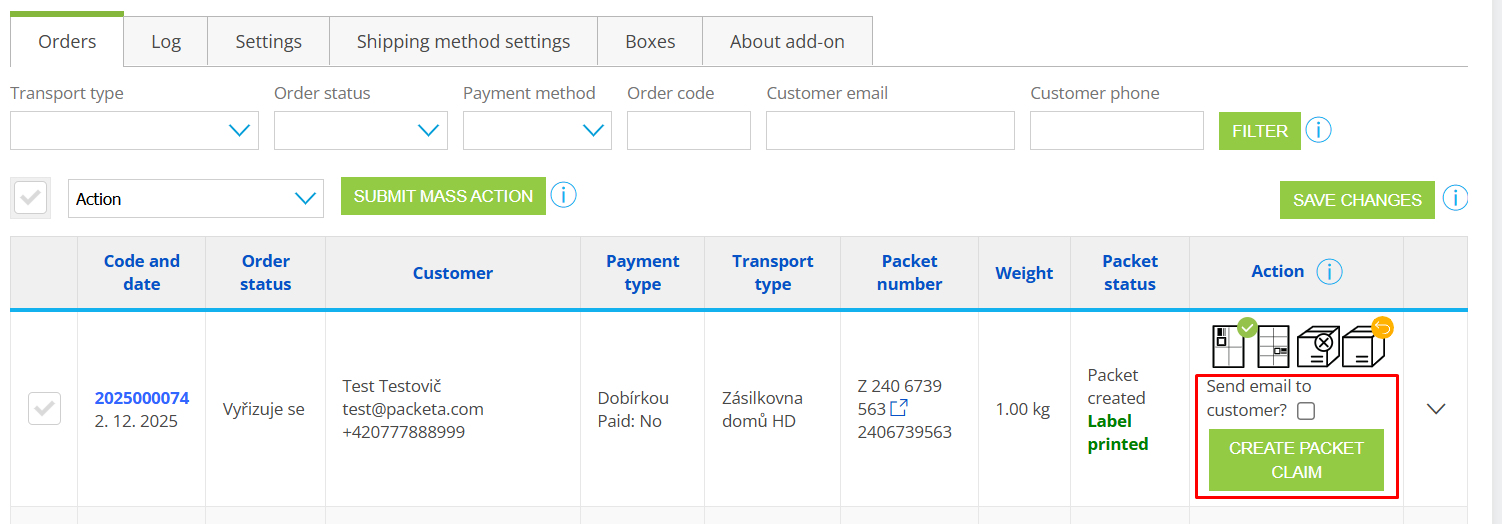
- After creation, a new packet number and tracking link are displayed
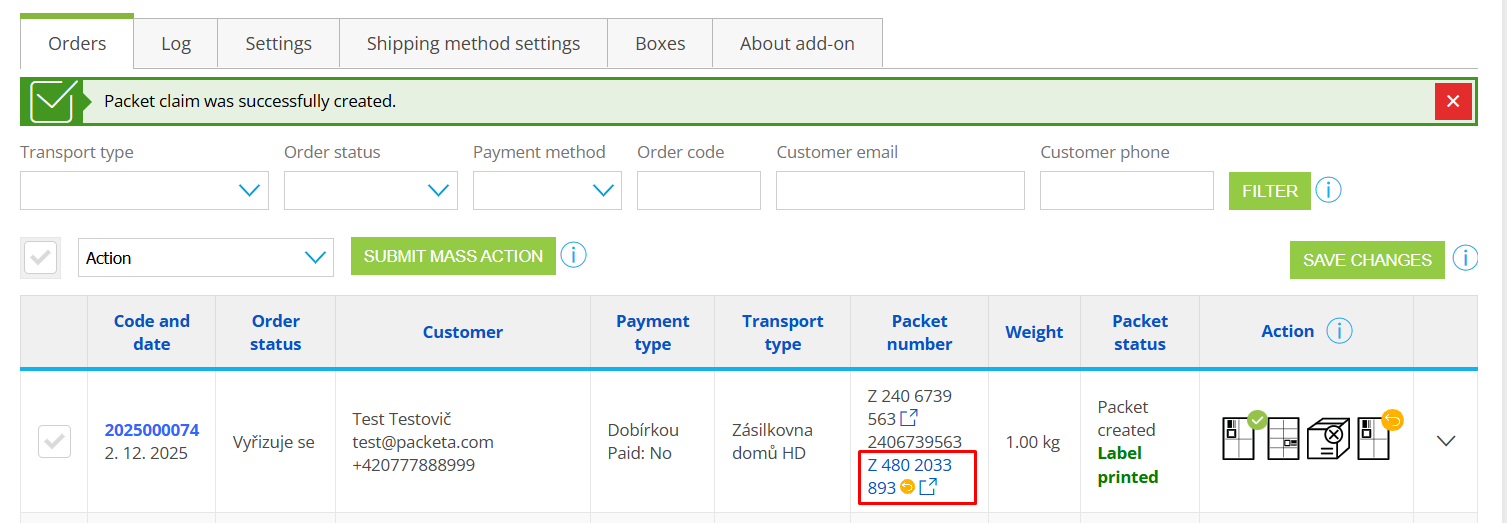
- Clicking the packet number shows the submission password
- Clicking the packet claim icon triggers the label download
Additional Packet Parameters
- Located under the button at the end of the table
- Parameters can be set in bulk for multiple orders at once
- Changes are saved using the Save Changes button (top right above the table)
- Changes are reflected in the order details

Verify age
- You can enable age verification on pickup
- Default value is No
- Cannot be changed after packet submission
Label Note
- Can be set for all carriers
- Maximum length: 32 characters
- Cannot be changed after packet submission
Planned Delivery
- Any planned date can be set (not verified)
- Cannot be changed after packet submission
Dimensions
- Entered as length x width x height in mm
- Cannot be changed after packet submission
Cash on Delivery
- Amount is retrieved from Shoptet, but can be manually adjusted here
- Cannot be changed after packet submission
- Payment status is changed manually in the order details (client section)
Value
- Packet value for insurance purposes is retrieved from Shoptet and can be manually adjusted here
- Cannot be changed after packet submission
Consignment code
- Password required to open a Z-BOX for packet drop-off
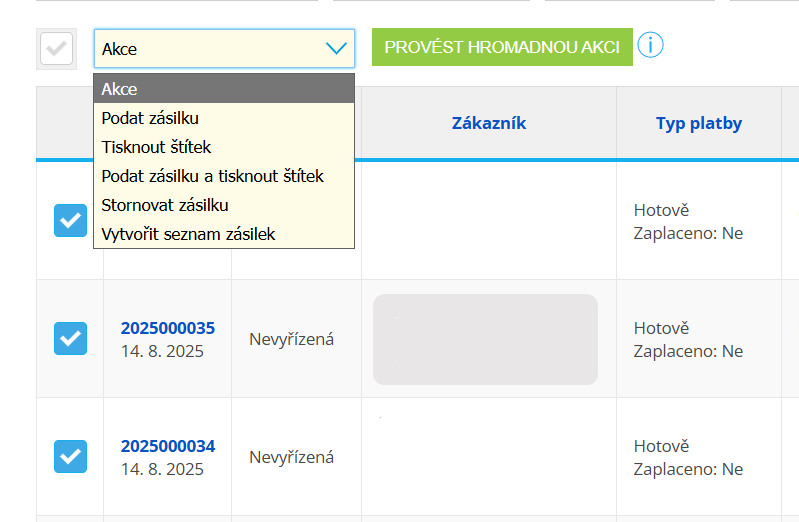
Bulk Actions
By selecting multiple orders using the checkbox in the left column, you can perform bulk edits according to the options above the orders table.
Packet list
Within bulk actions you can generate a packet list (delivery note) for the driver. The list serves as a record for potential claims. Orders without a packet are skipped.
The list includes:
- List number and barcode
- Number of packets in the list
- Print date
- Sender (billing address from Shoptet settings)
- Recipient (Packeta)
- Table with individual packet details (number and barcode, submission date, recipient name, COD, pickup point)
Bulk action notifications
-
All selected orders/packets are created. A success message appears.

-
Some orders/packets are created, others fail. A message lists failed packets and reasons.

-
All selected orders/packets failed. A message indicates full failure with reasons.

Print Label bulk action – if one label fails to be created, the entire print fails. Either all labels print or none.
All actions available for a single order are also available in bulk, except Create Packet and Print Label, which can only be used in bulk.
Settings
Default Packet Weight
This weight is used for packets where the product weight is not set in the product detail or manually entered in the orders overview. Enter in kg.
Default Packet Dimensions
Dimensions entered here are used for packet submission if required by the carrier and not manually set in the order. Dimensions are in mm: length x width x height.
Label Format
For sending packets via external carriers, the format must be A6 (1/4 A4). Other sizes print Packeta labels. We recommend using A6. 1/16 A4, 16 pcs/page is not supported.
Order History Language
Determines the language of packet history in Shoptet: Czech, Slovak, Hungarian, English.
Age Verification
If enabled, and at least one product in the order is marked “Adults only,” the “Age Verification” service is automatically applied. Only applies to carriers and pickup points that support it. Cannot send to a parcel box.
Automatic Packet Submission
Submits packets automatically based on order status changes.
For example, after changing status from “Paid by bank transfer” to “Processing,” the packet is automatically submitted.
Billing Address for Packet List
Automatically retrieved from Shoptet settings (Settings → General Settings → Store Settings → Billing Info). Can be updated manually via the update button.
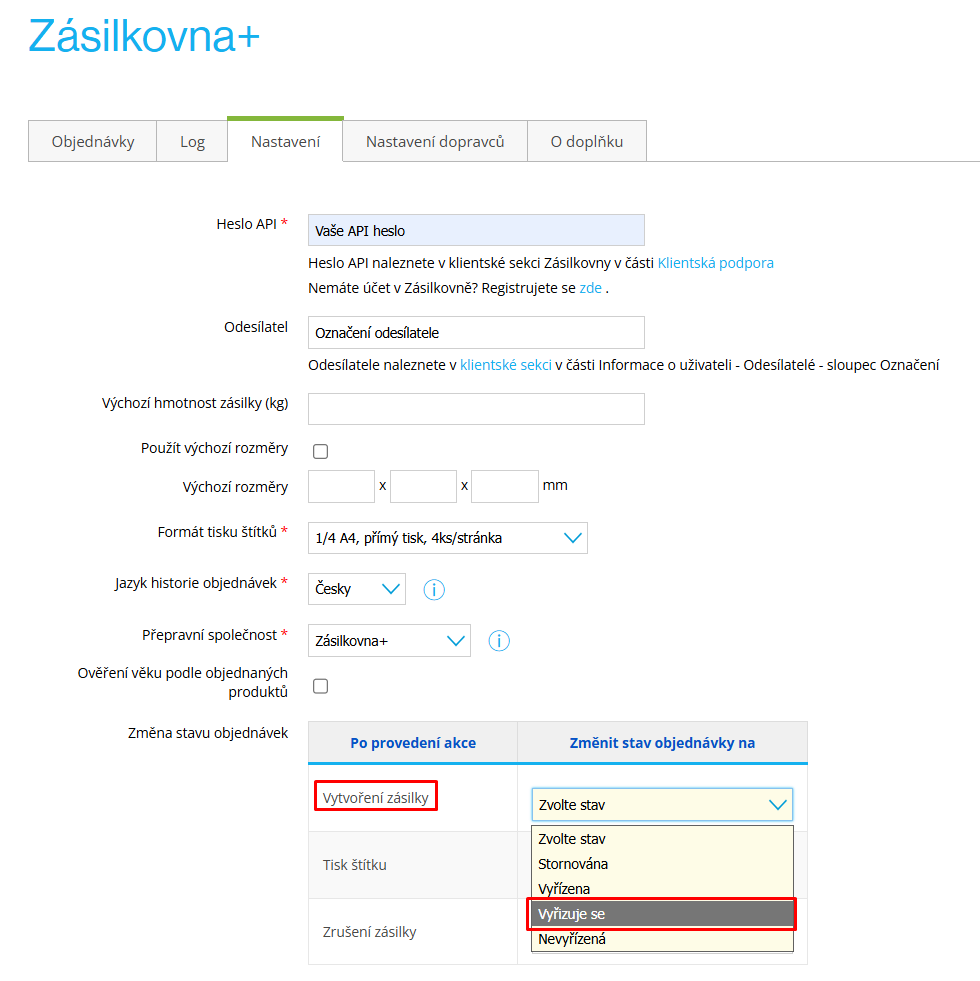
Automatic Order Status Change
Automatically updates order status based on actions: packet creation, label printing, and packet cancellation.
For example, creating a packet may change the status to “Processing.”
Log
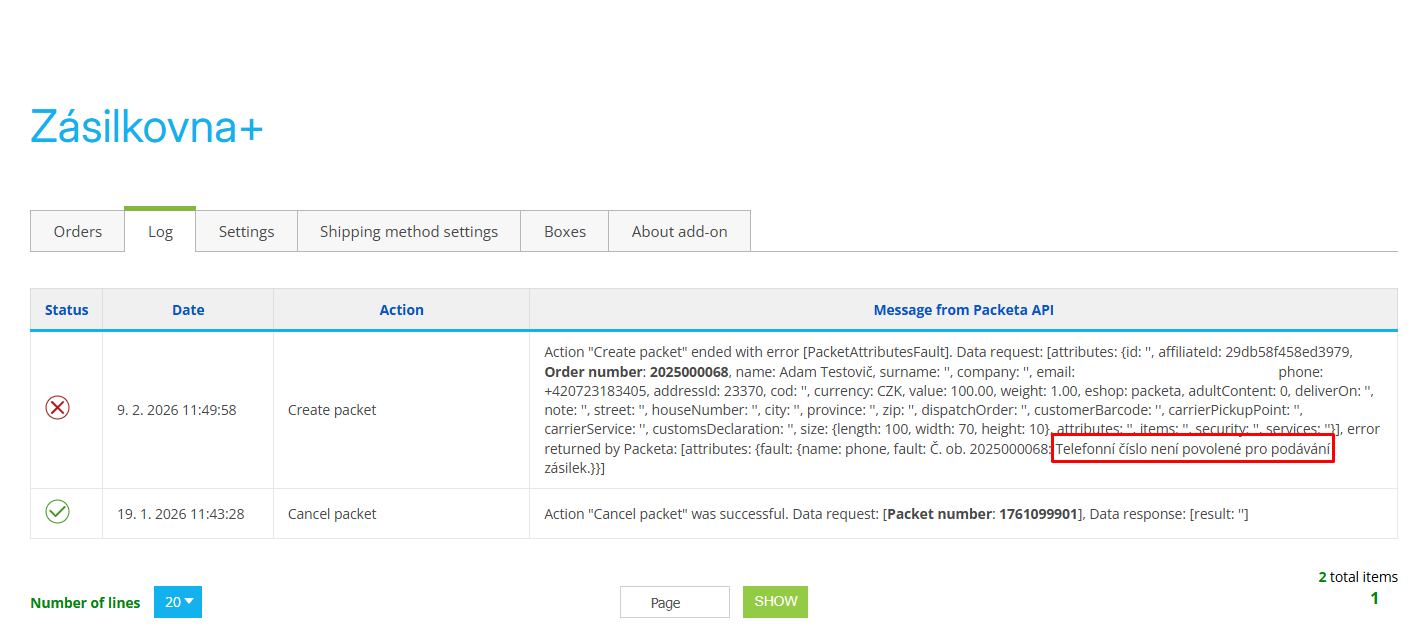
Overview of all API communication with Packeta. Logs are kept for 30 days. Columns include:
- Status – Shows whether action succeeded or failed
- Date – Date and time (DD-MM-YYYY HH:MM:SS) of the action
- Action – Name of the performed action
- Packeta API Message – Details of the action, including order number for investigation
Pausing the Plugin
In Connections → Addon Manager → Logistika tab, click Suspend. Pausing revokes access. Resume in the same place.
Uninstalling the Plugin
In Connections → Addon Manager → Logistika tab, click Uninstall. Uninstalling deletes all data linked to your e-shop. Packet history and logs are not available after reinstallation.
Didn’t find the answer to your question? Our team is available at integrations@packeta.com.